> ## Documentation Index
> Fetch the complete documentation index at: https://docs.kipmox.com/llms.txt
> Use this file to discover all available pages before exploring further.
# Sign In
> Sign in to kipmox with a secure magic link — no password needed.
kipmox uses passwordless **magic-link** sign-in. There's no password to remember or manage.
## Sign in from VS Code
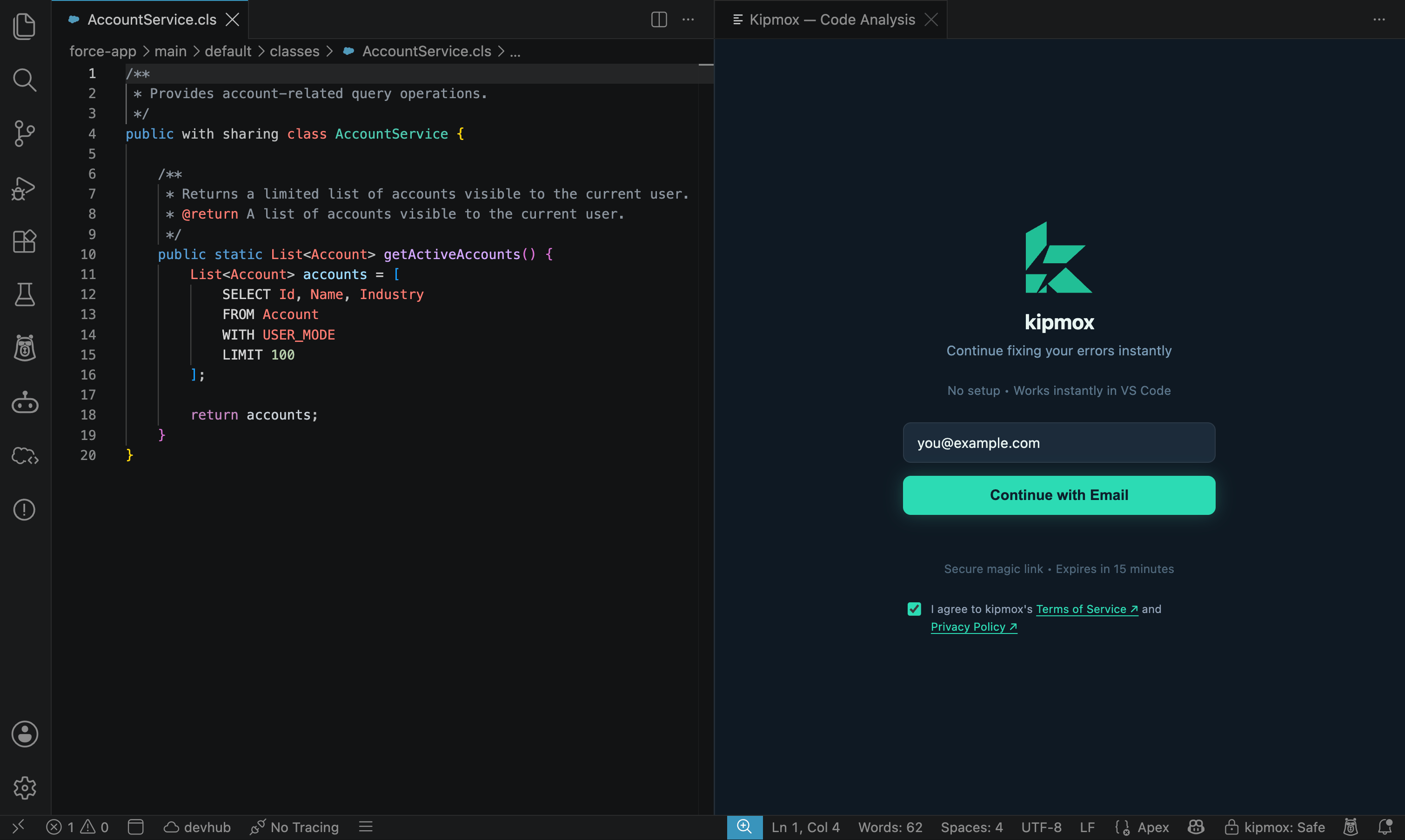
In the kipmox panel, enter your email and request a link.
kipmox sends you a sign-in link. Open the email and click it.
VS Code signs you in automatically. Re-run whatever action you were doing to continue.
The magic link expires after **15 minutes**. If it expires, request a new one from VS Code.
 ## Sign in from the website
You can also sign in at [kipmox.com](https://kipmox.com) with your email. From your **account page** you can open VS Code to connect your session, view your plan and usage, and manage billing. Your plan syncs across the website and VS Code — run **kipmox: Refresh Account** if you need VS Code to pick up a change right away.
## Trying kipmox without an account
Your **first 2 requests are free with no account**. From the **3rd request**, kipmox prompts you to sign in — this is still the Free plan (**15 fixes and 2 documents every 4 hours**); an account just lets you keep going.
## Sign out
Run **kipmox: Sign Out** from the Command Palette (`Cmd+Shift+P` / `Ctrl+Shift+P`) to sign out on that machine.
## Refresh your account
If you've just upgraded or your plan changed, run **kipmox: Refresh Account** to sync the latest status into VS Code — no reinstall needed.
What's included in Free, Pro, and Enterprise
Upgrade, change billing, or cancel
## Sign in from the website
You can also sign in at [kipmox.com](https://kipmox.com) with your email. From your **account page** you can open VS Code to connect your session, view your plan and usage, and manage billing. Your plan syncs across the website and VS Code — run **kipmox: Refresh Account** if you need VS Code to pick up a change right away.
## Trying kipmox without an account
Your **first 2 requests are free with no account**. From the **3rd request**, kipmox prompts you to sign in — this is still the Free plan (**15 fixes and 2 documents every 4 hours**); an account just lets you keep going.
## Sign out
Run **kipmox: Sign Out** from the Command Palette (`Cmd+Shift+P` / `Ctrl+Shift+P`) to sign out on that machine.
## Refresh your account
If you've just upgraded or your plan changed, run **kipmox: Refresh Account** to sync the latest status into VS Code — no reinstall needed.
What's included in Free, Pro, and Enterprise
Upgrade, change billing, or cancel