> ## Documentation Index
> Fetch the complete documentation index at: https://docs.kipmox.com/llms.txt
> Use this file to discover all available pages before exploring further.
# Offline Mode
> Run kipmox fully locally with Ollama — your code never leaves your machine.
Offline Mode runs kipmox entirely on your machine using [Ollama](https://ollama.com) — a local AI runtime. No code is sent to any external service. This makes it ideal for restricted environments, air-gapped networks, or developers who require complete data sovereignty.
Offline Mode requires a **Pro** plan. Running `kipmox: Set Up Offline Mode` on a Free plan will show an upgrade prompt.
## Requirements
| | |
| -------------- | ---------------------------------------------------- |
| **Plan** | Pro |
| **RAM** | 4GB minimum (8GB recommended, 16GB for best quality) |
| **Disk space** | 1GB minimum (up to 9GB depending on model chosen) |
| **OS** | macOS or Windows |
## Setup
Run the guided setup from the Command Palette:
kipmox: Set Up Offline Mode
The setup wizard opens and checks your system automatically.
### Step 1 — System check
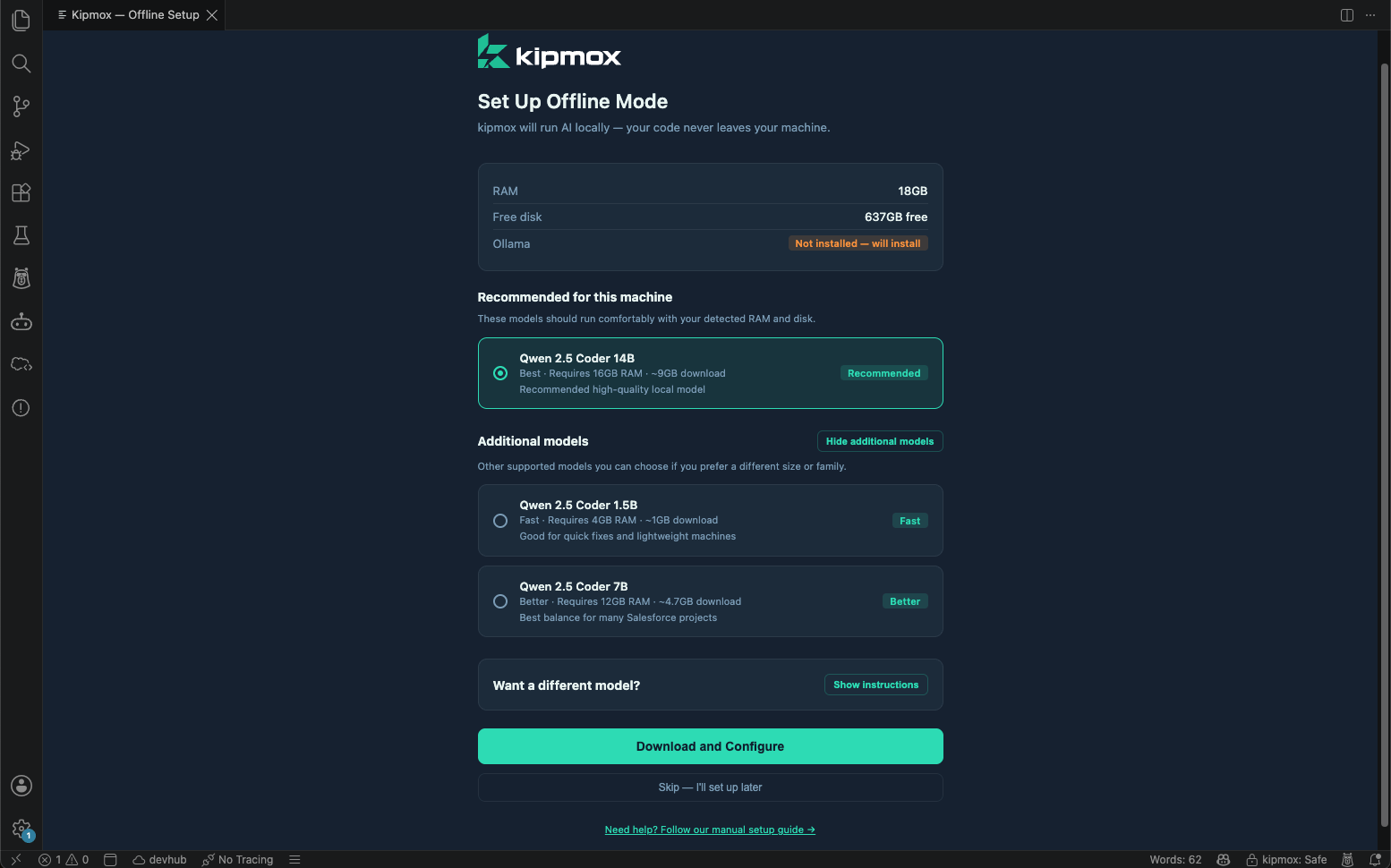
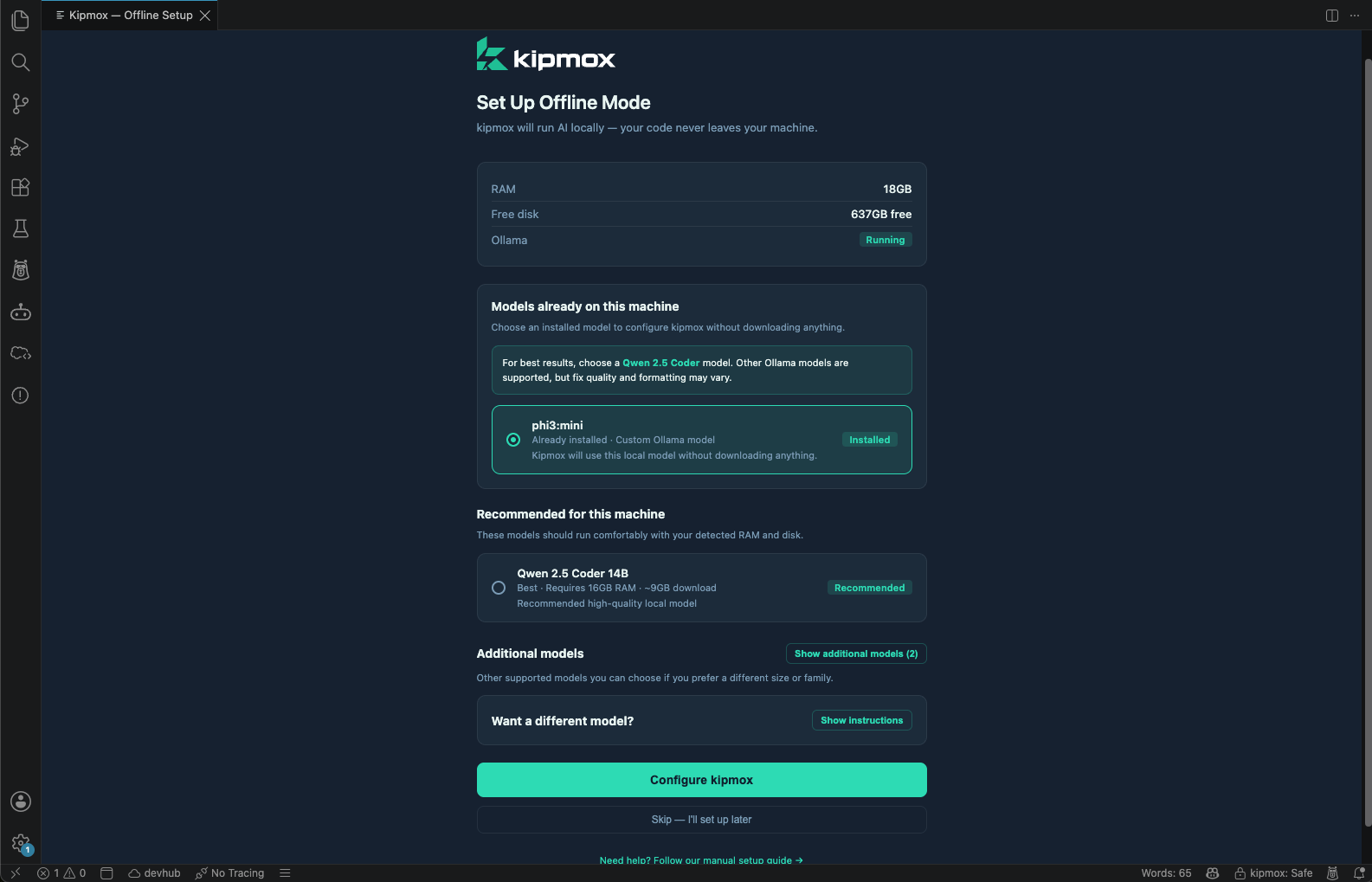
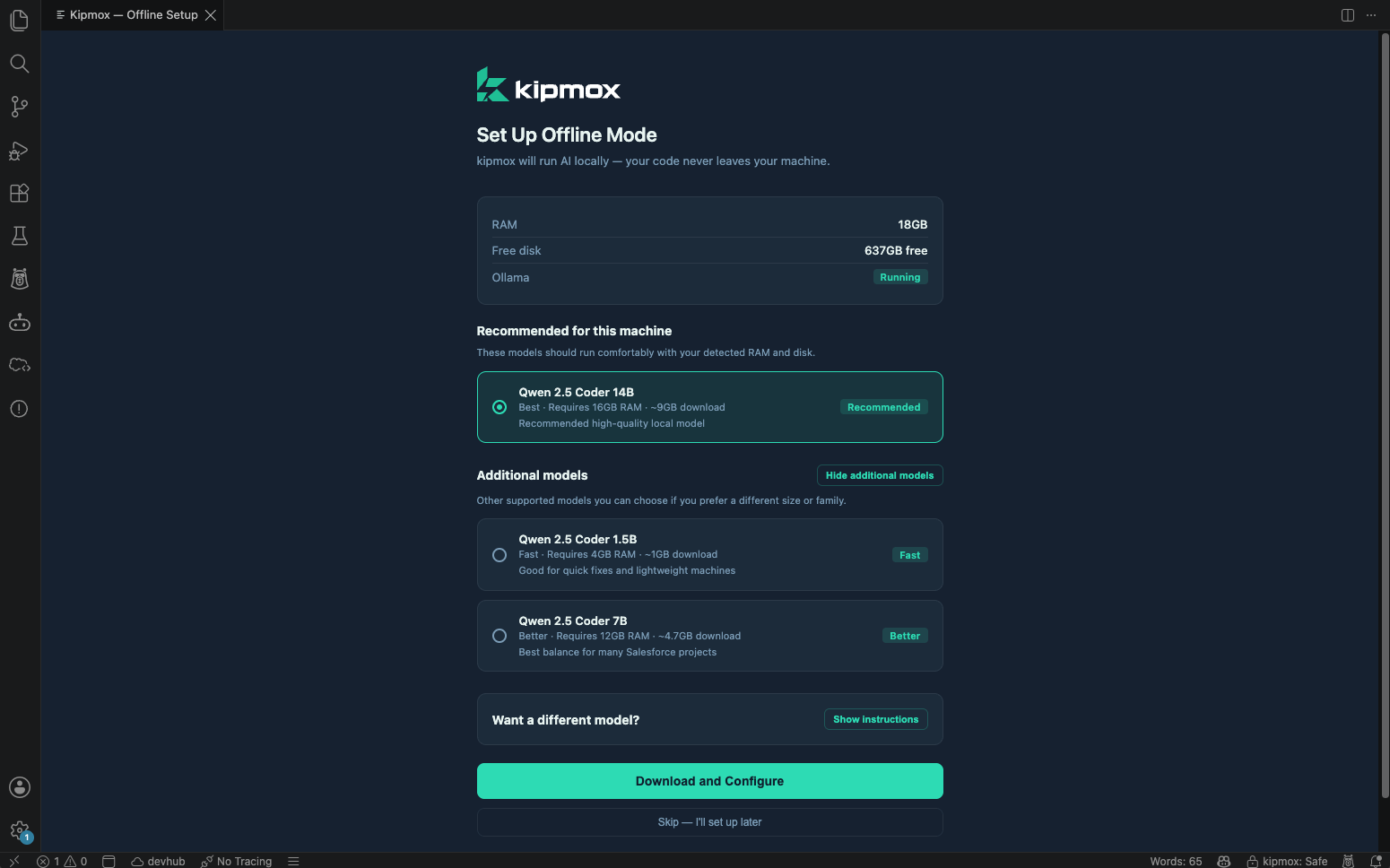
kipmox scans your machine and shows your available RAM, free disk space, and Ollama status. The wizard handles three scenarios automatically:
**Ollama not installed:**
Ollama will be installed automatically during setup. Choose the AI model that best matches your hardware.
**Ollama installed, compatible model found:**
kipmox detects your existing model and proceeds directly to configuration. Click **Configure kipmox** to continue.
**Ollama installed, no compatible model:**
kipmox detects Ollama but no suitable model. Choose a model to download and click **Download and Configure**.
When choosing a model, select based on your available RAM:
| Model | Quality | Download size | RAM required |
| ----------------------- | ----------- | ------------- | ------------ |
| **Qwen 2.5 Coder 14B** | Best | 9GB | 16GB |
| **Qwen 2.5 Coder 7B** | Great | 4.7GB | 8GB |
| **Qwen 2.5 Coder 1.5B** | Lightweight | 1GB | 4GB |
kipmox automatically selects the recommended model based on your available RAM.
Any Ollama model works with kipmox — the options above are our recommendations for Salesforce development. To use a different model, install it via terminal first with `ollama pull `, then run the setup wizard.
 ### Step 2 — Installation and download
kipmox handles everything automatically with a live progress screen:
* **Installing Ollama** — installs the local AI runtime (skipped if already installed)
* **Downloading AI model** — downloads your selected model with a live progress percentage
* **Configuring kipmox** — connects kipmox to the local model
### Step 2 — Installation and download
kipmox handles everything automatically with a live progress screen:
* **Installing Ollama** — installs the local AI runtime (skipped if already installed)
* **Downloading AI model** — downloads your selected model with a live progress percentage
* **Configuring kipmox** — connects kipmox to the local model
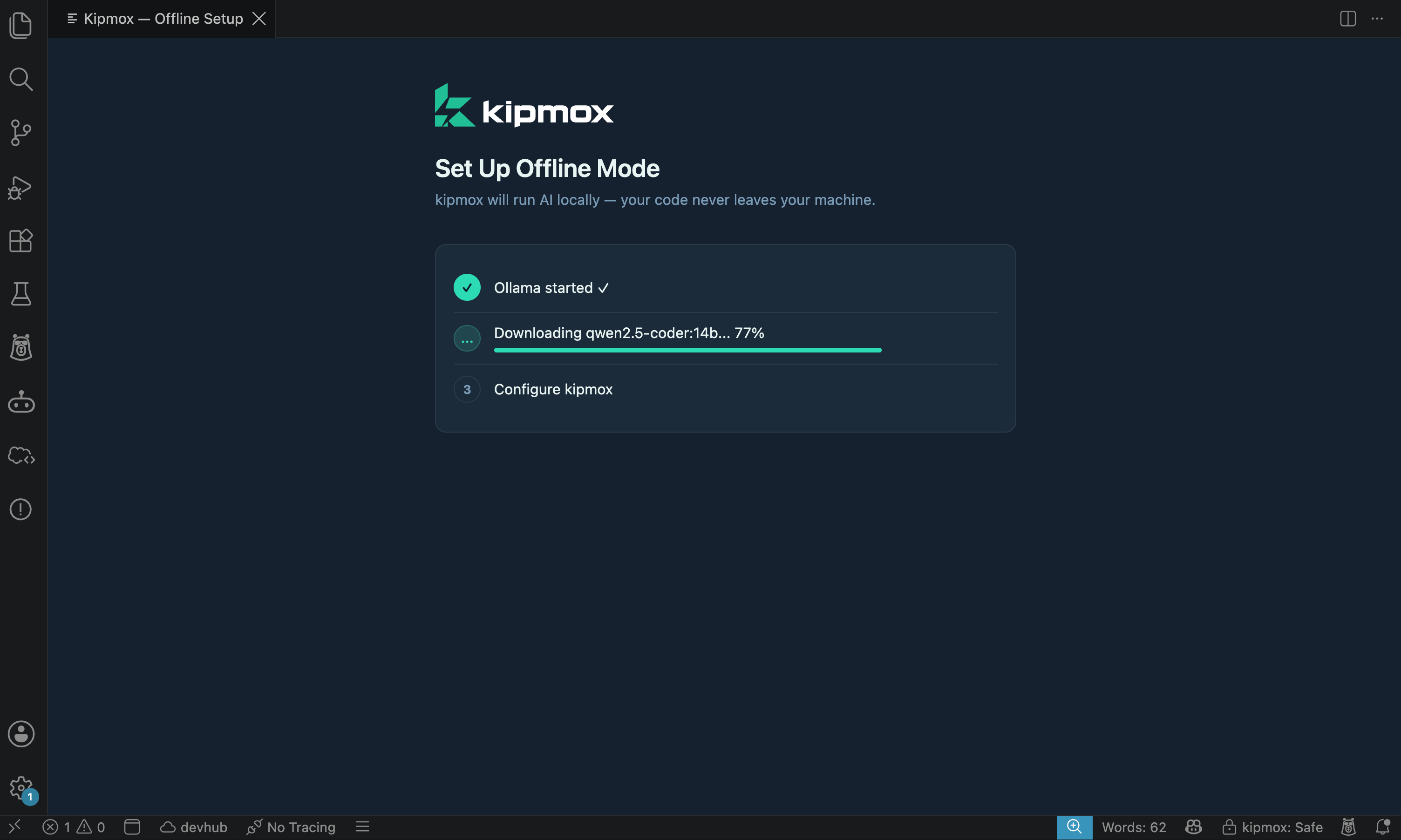 The 14B model is \~9GB and may take several minutes to over 30 minutes to download depending on your internet speed. Keep VS Code open during the download.
### Step 3 — Complete
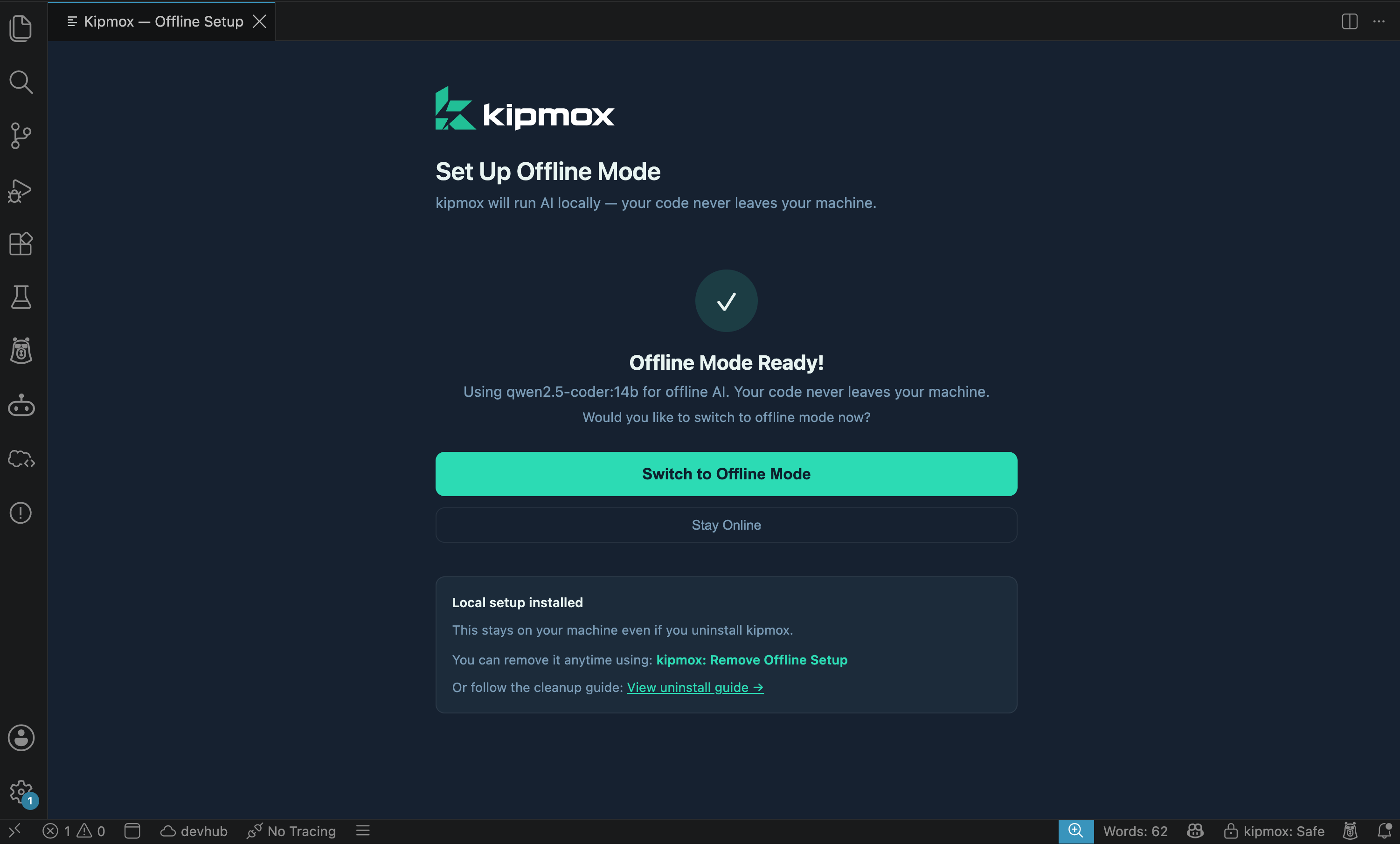
Once setup is complete, kipmox shows **Offline Mode Ready!**
* Click **Switch to Offline Mode** to start using offline AI immediately
* Click **Stay Online** to keep using online mode and switch later
The 14B model is \~9GB and may take several minutes to over 30 minutes to download depending on your internet speed. Keep VS Code open during the download.
### Step 3 — Complete
Once setup is complete, kipmox shows **Offline Mode Ready!**
* Click **Switch to Offline Mode** to start using offline AI immediately
* Click **Stay Online** to keep using online mode and switch later
 Once setup is complete, Ollama starts automatically on login. You don't need to do anything to keep it running.
The local setup (Ollama and the AI model) stays on your machine even if you uninstall kipmox. Use `kipmox: Clean Up Offline Files` to remove it when no longer needed.
## Manual setup (if the guided setup doesn't work)
If **kipmox: Set Up Offline Mode** fails on your machine, you can set up Ollama and a model yourself, then point kipmox at it — you'll end up in exactly the same place. You won't be stuck.
### 1. Install Ollama
1. Download **Ollama for macOS** from [ollama.com/download](https://ollama.com/download).
2. Open the downloaded file, drag **Ollama** into your **Applications** folder, and launch it.
Or, with [Homebrew](https://brew.sh):
```bash theme={null}
brew install ollama
brew services start ollama
```
`brew services start` runs Ollama in the background and restarts it automatically on login. (A plain `ollama serve` also works, but only for as long as that terminal window stays open.) If Homebrew prints a *"post-install step did not complete"* warning, you can ignore it — the `ollama` command still works.
With [winget](https://learn.microsoft.com/windows/package-manager/winget/) (included on Windows 10/11) — this is the same method kipmox uses internally:
```bash theme={null}
winget install Ollama.Ollama
```
Accept any source/package agreement prompts if asked. Ollama installs and starts automatically in the background.
Or download the installer manually:
1. Download **OllamaSetup.exe** from [ollama.com/download](https://ollama.com/download).
2. Run the installer and follow the prompts. Ollama starts automatically and runs in the background.
Confirm it's installed and running:
```bash theme={null}
ollama --version
```
### 2. Download a model
Pick a model that fits your RAM (see the table above), then pull it. These commands are the same on macOS and Windows:
```bash theme={null}
# 8GB RAM — recommended for most machines
ollama pull qwen2.5-coder:7b
# 16GB+ RAM — best quality
ollama pull qwen2.5-coder:14b
# 4GB RAM — lightweight
ollama pull qwen2.5-coder:1.5b
```
Verify the model downloaded:
```bash theme={null}
ollama list
```
### 3. Point kipmox at it
With Ollama running and a model installed, do **either**:
* **Re-run the wizard** — run **kipmox: Set Up Offline Mode** again. It now detects Ollama and your model, so you can click **Configure kipmox**.
* **Set it manually** — open VS Code Settings (`Cmd+,` / `Ctrl+,`), search for `kipmox`, then:
1. Set **kipmox: Offline Model** to the exact tag you pulled (for example, `qwen2.5-coder:7b`).
2. Set **kipmox: Mode** to `offline`.
3. Run **Developer: Reload Window** from the Command Palette.
kipmox now runs fully offline against your local model.
## Switching between Online and Offline
Once Offline Mode is set up, switch between modes instantly from the Command Palette:
kipmox: Toggle Online / Offline Mode
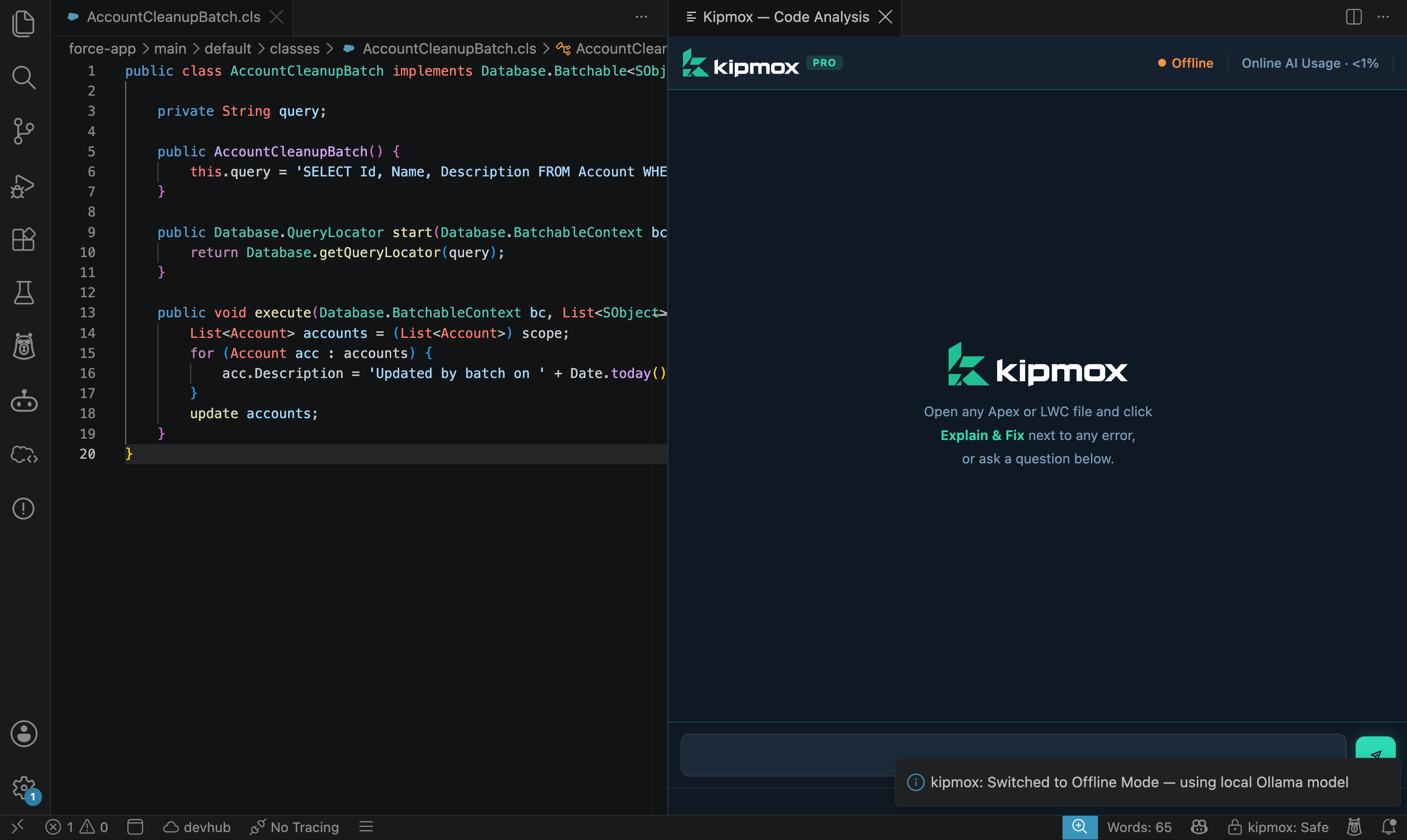
* **Switching to Offline** shows: *"kipmox: Switched to Offline Mode — using local Ollama model"*
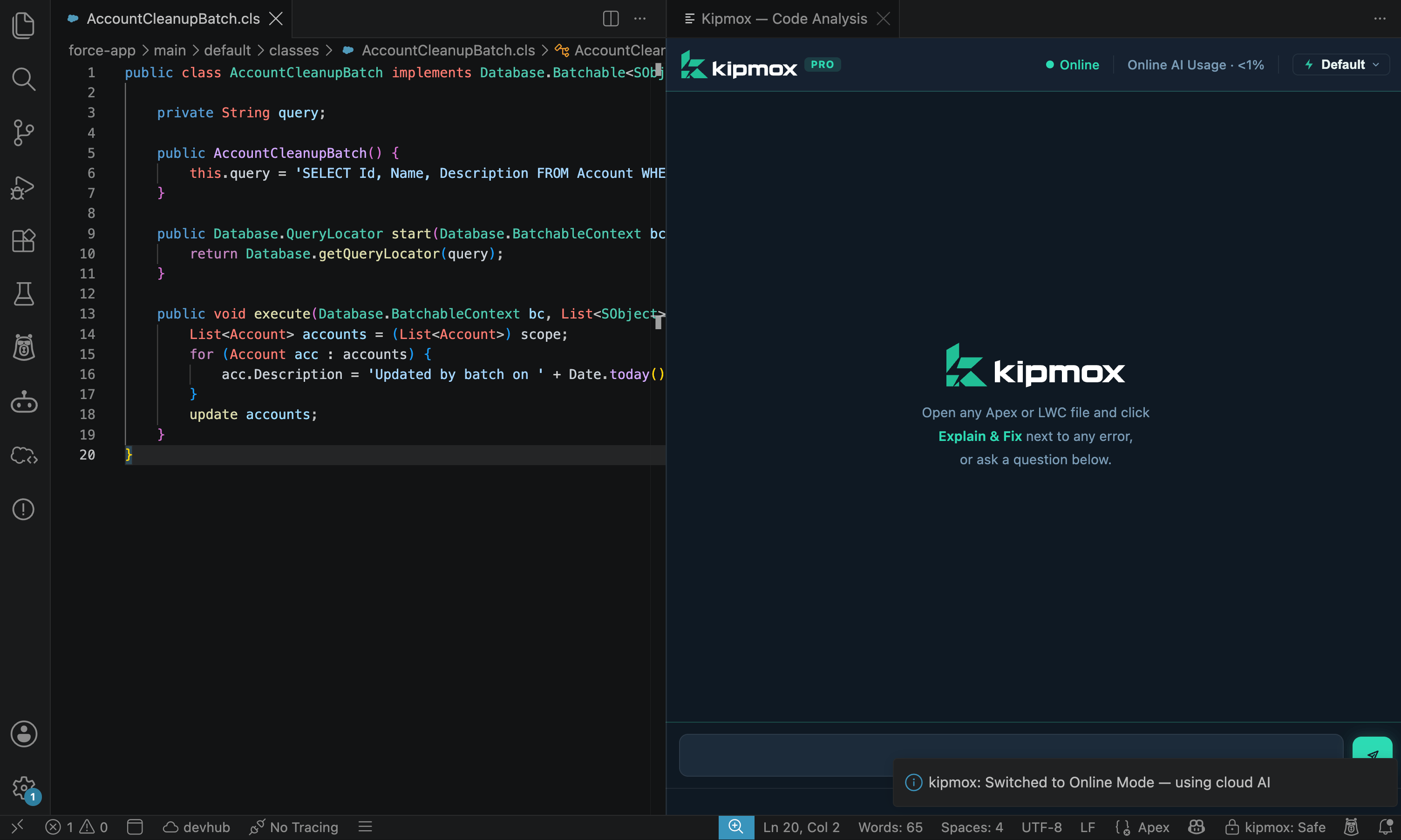
* **Switching to Online** shows: *"kipmox: Switched to Online Mode — using cloud AI"*
The mode persists across sessions — kipmox remembers your last setting.
Alternatively, switch via VS Code Settings (`Cmd+,` / `Ctrl+,`) — search for `kipmox` and change the **kipmox: Mode** dropdown between `online` and `offline`.
Once setup is complete, Ollama starts automatically on login. You don't need to do anything to keep it running.
The local setup (Ollama and the AI model) stays on your machine even if you uninstall kipmox. Use `kipmox: Clean Up Offline Files` to remove it when no longer needed.
## Manual setup (if the guided setup doesn't work)
If **kipmox: Set Up Offline Mode** fails on your machine, you can set up Ollama and a model yourself, then point kipmox at it — you'll end up in exactly the same place. You won't be stuck.
### 1. Install Ollama
1. Download **Ollama for macOS** from [ollama.com/download](https://ollama.com/download).
2. Open the downloaded file, drag **Ollama** into your **Applications** folder, and launch it.
Or, with [Homebrew](https://brew.sh):
```bash theme={null}
brew install ollama
brew services start ollama
```
`brew services start` runs Ollama in the background and restarts it automatically on login. (A plain `ollama serve` also works, but only for as long as that terminal window stays open.) If Homebrew prints a *"post-install step did not complete"* warning, you can ignore it — the `ollama` command still works.
With [winget](https://learn.microsoft.com/windows/package-manager/winget/) (included on Windows 10/11) — this is the same method kipmox uses internally:
```bash theme={null}
winget install Ollama.Ollama
```
Accept any source/package agreement prompts if asked. Ollama installs and starts automatically in the background.
Or download the installer manually:
1. Download **OllamaSetup.exe** from [ollama.com/download](https://ollama.com/download).
2. Run the installer and follow the prompts. Ollama starts automatically and runs in the background.
Confirm it's installed and running:
```bash theme={null}
ollama --version
```
### 2. Download a model
Pick a model that fits your RAM (see the table above), then pull it. These commands are the same on macOS and Windows:
```bash theme={null}
# 8GB RAM — recommended for most machines
ollama pull qwen2.5-coder:7b
# 16GB+ RAM — best quality
ollama pull qwen2.5-coder:14b
# 4GB RAM — lightweight
ollama pull qwen2.5-coder:1.5b
```
Verify the model downloaded:
```bash theme={null}
ollama list
```
### 3. Point kipmox at it
With Ollama running and a model installed, do **either**:
* **Re-run the wizard** — run **kipmox: Set Up Offline Mode** again. It now detects Ollama and your model, so you can click **Configure kipmox**.
* **Set it manually** — open VS Code Settings (`Cmd+,` / `Ctrl+,`), search for `kipmox`, then:
1. Set **kipmox: Offline Model** to the exact tag you pulled (for example, `qwen2.5-coder:7b`).
2. Set **kipmox: Mode** to `offline`.
3. Run **Developer: Reload Window** from the Command Palette.
kipmox now runs fully offline against your local model.
## Switching between Online and Offline
Once Offline Mode is set up, switch between modes instantly from the Command Palette:
kipmox: Toggle Online / Offline Mode
* **Switching to Offline** shows: *"kipmox: Switched to Offline Mode — using local Ollama model"*
* **Switching to Online** shows: *"kipmox: Switched to Online Mode — using cloud AI"*
The mode persists across sessions — kipmox remembers your last setting.
Alternatively, switch via VS Code Settings (`Cmd+,` / `Ctrl+,`) — search for `kipmox` and change the **kipmox: Mode** dropdown between `online` and `offline`.
 ## Removing Offline Mode
Run the cleanup command from the Command Palette:
kipmox: Clean Up Offline Files
A confirmation dialog appears asking what you want to remove.
### Remove model only
Removes the AI model (\~9GB freed) but keeps Ollama on your machine. Choose this if you use Ollama for other tools or projects.
**Result:**
* ✅ AI model removed (freed \~9 GB)
* Ollama kept — still available for other tools
### Remove model + Ollama
Removes both the AI model and Ollama from your machine completely.
1. **First confirmation** — lists the AI model to be removed and warns that other applications using Ollama will be affected. Click **Remove model + Ollama** to continue.
2. **Second confirmation** — confirms Ollama removal specifically. You may be prompted for your system password — this is expected when uninstalling system applications.
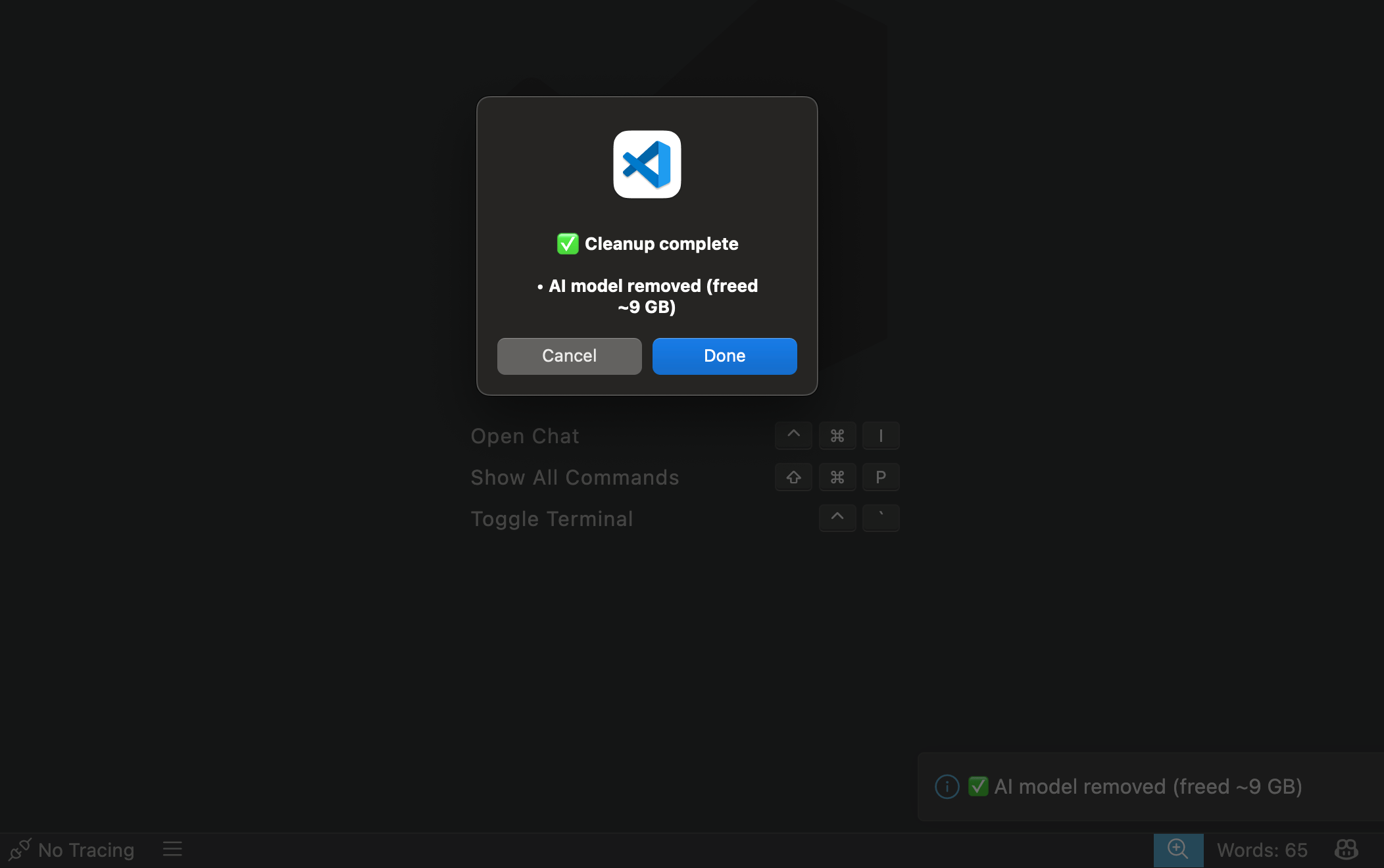
3. **Cleanup complete** — AI model removed and Ollama removed.
**Result:**
* ✅ AI model removed (freed \~9 GB)
* ✅ Ollama removed
Only remove Ollama if you no longer need local AI on this machine. Removing Ollama will disable offline AI features for kipmox and any other applications that use it.
## Removing Offline Mode
Run the cleanup command from the Command Palette:
kipmox: Clean Up Offline Files
A confirmation dialog appears asking what you want to remove.
### Remove model only
Removes the AI model (\~9GB freed) but keeps Ollama on your machine. Choose this if you use Ollama for other tools or projects.
**Result:**
* ✅ AI model removed (freed \~9 GB)
* Ollama kept — still available for other tools
### Remove model + Ollama
Removes both the AI model and Ollama from your machine completely.
1. **First confirmation** — lists the AI model to be removed and warns that other applications using Ollama will be affected. Click **Remove model + Ollama** to continue.
2. **Second confirmation** — confirms Ollama removal specifically. You may be prompted for your system password — this is expected when uninstalling system applications.
3. **Cleanup complete** — AI model removed and Ollama removed.
**Result:**
* ✅ AI model removed (freed \~9 GB)
* ✅ Ollama removed
Only remove Ollama if you no longer need local AI on this machine. Removing Ollama will disable offline AI features for kipmox and any other applications that use it.
 ### Manual uninstall (if the cleanup command doesn't work)
If **kipmox: Clean Up Offline Files** fails, remove the model and Ollama yourself.
**1. Remove the model** — list your models, then remove the one you used:
```bash theme={null}
ollama list
ollama rm qwen2.5-coder:7b
```
**2. Uninstall Ollama:**
```bash theme={null}
# Quit Ollama
killall Ollama 2>/dev/null; killall ollama 2>/dev/null
# Remove the app and its data (models live in ~/.ollama)
rm -rf /Applications/Ollama.app
rm -rf ~/.ollama
```
With winget — in **Command Prompt**:
```bash theme={null}
winget uninstall Ollama.Ollama
rmdir /s /q %USERPROFILE%\.ollama
```
Or manually: open **Settings → Apps → Installed apps**, find **Ollama**, click **Uninstall**, then remove the leftover model data with `rmdir /s /q %USERPROFILE%\.ollama`.
**3. Switch kipmox back to online** — run **kipmox: Toggle Online / Offline Mode**, or set **kipmox: Mode** to `online` in Settings.
## Common issues
Offline Mode requires a Pro plan. Upgrade at [kipmox.com](https://kipmox.com) to access Offline Mode.
The recommended 14B model requires \~9GB of free disk space. If you don't have enough space:
* Choose the **7B model** (4.7GB) or **1.5B Lite model** (1GB) during setup
* Free up disk space and run `kipmox: Set Up Offline Mode` again
kipmox automatically selects the best model for your available RAM:
* **16GB RAM or more** — Qwen 2.5 Coder 14B (best quality)
* **8GB RAM** — Qwen 2.5 Coder 7B (great quality)
* **4GB RAM** — Qwen 2.5 Coder 1.5B Lite (lightweight)
The model download requires a stable internet connection. If the download stalls:
1. Keep VS Code open and wait — the download resumes automatically in most cases
2. If it appears stuck for more than 10 minutes, close VS Code and run `kipmox: Set Up Offline Mode` again — the wizard will detect the partial download and resume
Run `kipmox: Set Up Offline Mode` again — Ollama may not have been running when the wizard first scanned. The wizard will detect it on the next scan.
1. Check that **kipmox: Mode** is set to `offline` in VS Code Settings (`Cmd+,` / `Ctrl+,`)
2. Run **Developer: Reload Window** from the Command Palette and try again
3. If the issue persists, run `kipmox: Clean Up Offline Files` and set up again
Yes — removing Ollama requires system-level permissions. The password prompt is expected when uninstalling system applications. Enter your login password to proceed.
The local setup (Ollama and the AI model) persists after uninstalling kipmox, and Ollama keeps auto-starting on login. To remove it: reinstall kipmox, run `kipmox: Clean Up Offline Files` → **Remove model + Ollama**, then uninstall kipmox again — or follow the **Manual uninstall** section above.
Control when fixes are applied to your code
How kipmox handles your code and data in offline mode
### Manual uninstall (if the cleanup command doesn't work)
If **kipmox: Clean Up Offline Files** fails, remove the model and Ollama yourself.
**1. Remove the model** — list your models, then remove the one you used:
```bash theme={null}
ollama list
ollama rm qwen2.5-coder:7b
```
**2. Uninstall Ollama:**
```bash theme={null}
# Quit Ollama
killall Ollama 2>/dev/null; killall ollama 2>/dev/null
# Remove the app and its data (models live in ~/.ollama)
rm -rf /Applications/Ollama.app
rm -rf ~/.ollama
```
With winget — in **Command Prompt**:
```bash theme={null}
winget uninstall Ollama.Ollama
rmdir /s /q %USERPROFILE%\.ollama
```
Or manually: open **Settings → Apps → Installed apps**, find **Ollama**, click **Uninstall**, then remove the leftover model data with `rmdir /s /q %USERPROFILE%\.ollama`.
**3. Switch kipmox back to online** — run **kipmox: Toggle Online / Offline Mode**, or set **kipmox: Mode** to `online` in Settings.
## Common issues
Offline Mode requires a Pro plan. Upgrade at [kipmox.com](https://kipmox.com) to access Offline Mode.
The recommended 14B model requires \~9GB of free disk space. If you don't have enough space:
* Choose the **7B model** (4.7GB) or **1.5B Lite model** (1GB) during setup
* Free up disk space and run `kipmox: Set Up Offline Mode` again
kipmox automatically selects the best model for your available RAM:
* **16GB RAM or more** — Qwen 2.5 Coder 14B (best quality)
* **8GB RAM** — Qwen 2.5 Coder 7B (great quality)
* **4GB RAM** — Qwen 2.5 Coder 1.5B Lite (lightweight)
The model download requires a stable internet connection. If the download stalls:
1. Keep VS Code open and wait — the download resumes automatically in most cases
2. If it appears stuck for more than 10 minutes, close VS Code and run `kipmox: Set Up Offline Mode` again — the wizard will detect the partial download and resume
Run `kipmox: Set Up Offline Mode` again — Ollama may not have been running when the wizard first scanned. The wizard will detect it on the next scan.
1. Check that **kipmox: Mode** is set to `offline` in VS Code Settings (`Cmd+,` / `Ctrl+,`)
2. Run **Developer: Reload Window** from the Command Palette and try again
3. If the issue persists, run `kipmox: Clean Up Offline Files` and set up again
Yes — removing Ollama requires system-level permissions. The password prompt is expected when uninstalling system applications. Enter your login password to proceed.
The local setup (Ollama and the AI model) persists after uninstalling kipmox, and Ollama keeps auto-starting on login. To remove it: reinstall kipmox, run `kipmox: Clean Up Offline Files` → **Remove model + Ollama**, then uninstall kipmox again — or follow the **Manual uninstall** section above.
Control when fixes are applied to your code
How kipmox handles your code and data in offline mode