> ## Documentation Index
> Fetch the complete documentation index at: https://docs.kipmox.com/llms.txt
> Use this file to discover all available pages before exploring further.
# Safe Mode
> Control whether kipmox applies fixes automatically or waits for your approval.
kipmox has two fix modes — **Safe Mode** and **Auto Fix Mode**. Safe Mode is the default for all users. It gives you full control over every fix before it touches your code.
## The two modes
| | Safe Mode | Auto Fix Mode |
| -------------- | ------------------------------------ | ----------------------------------------- |
| **Default** | Yes | — |
| **Apply Fix** | You review, then click **Apply Fix** | Applied automatically — Apply Fix skipped |
| **Saving** | Auto-saved on apply | Auto-saved on apply |
| **Undo** | `Cmd+Z` / **Undo Fix** | `Cmd+Z` / **Undo Fix** |
| **Applies to** | Deploy errors + Code Analysis | Deploy errors + Code Analysis |
## Safe Mode
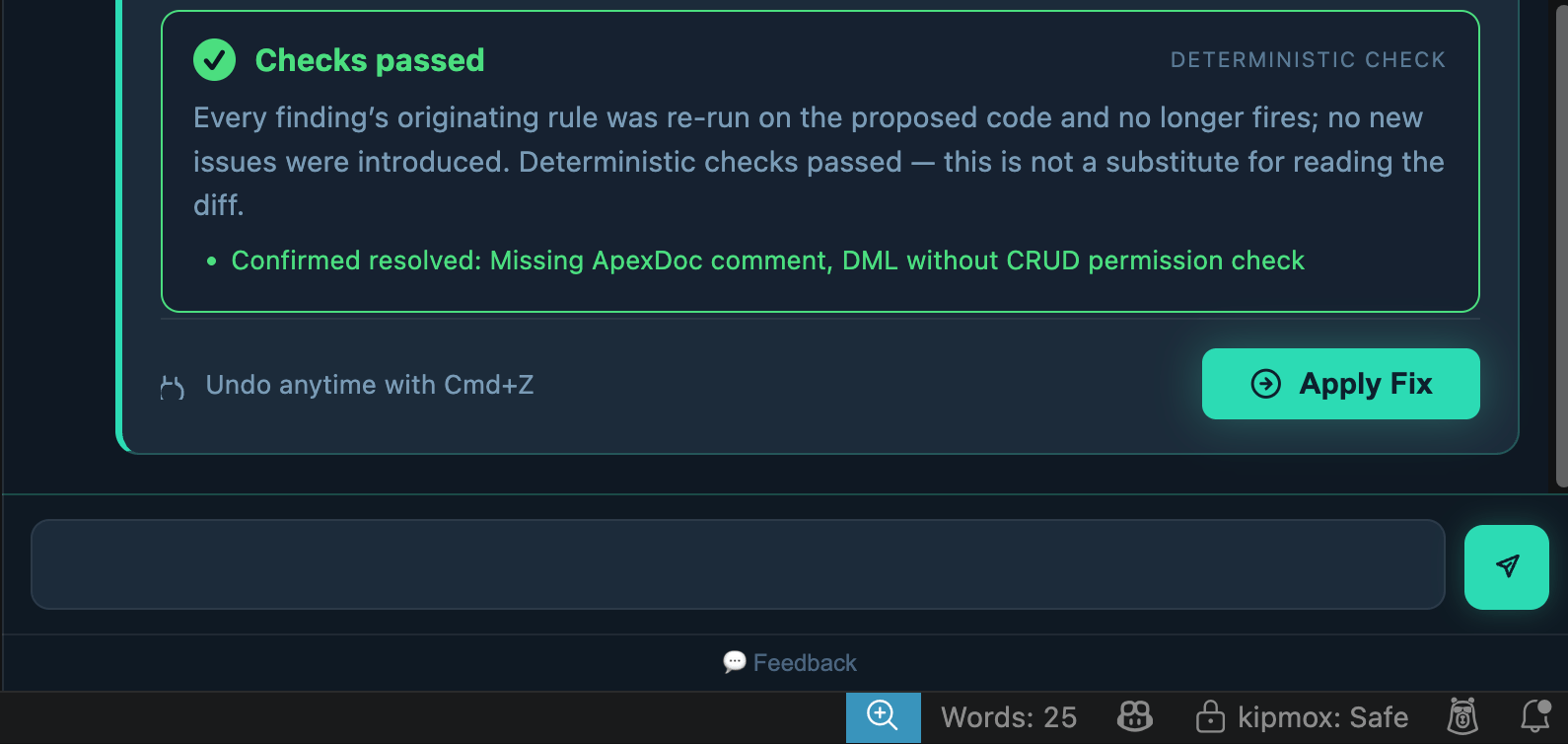
In Safe Mode, kipmox generates a fix and waits for you to review it before applying anything to your code.
**Deploy errors:**
1. Click **Analyze & Generate Fixes**
2. Review the Fixed Code, What Changed, and Confidence & Risk
3. Click **Apply Fix** — the change applies and **saves automatically**, changed lines highlighted in green
4. Not what you wanted? Click **Undo Fix** or press `Cmd+Z` / `Ctrl+Z`
**Code Analysis:**
1. Click **kipmox: 💡 Explain & Fix** on a flagged line
2. Review the fix in the Code Analysis panel
3. Click **Apply Fix** — the change applies and **saves automatically**
4. Not what you wanted? Click **Undo Fix** or press `Cmd+Z` / `Ctrl+Z`
 ## Auto Fix Mode
In Auto Fix Mode, kipmox generates **and applies** fixes automatically — the Apply Fix button is skipped. The change is **saved automatically** with changed lines highlighted in green; undo anytime.
**Deploy errors:**
1. Click **Analyze & Generate Fixes**
2. Each fix is generated, applied, and saved automatically
3. Not what you wanted? Click **Undo Fix** or press `Cmd+Z` / `Ctrl+Z`
**Code Analysis:**
1. Click **kipmox: 💡 Explain & Fix** on a flagged line
2. The fix is generated, applied, and saved automatically
3. Not what you wanted? Click **Undo Fix** or press `Cmd+Z` / `Ctrl+Z`
## Auto Fix Mode
In Auto Fix Mode, kipmox generates **and applies** fixes automatically — the Apply Fix button is skipped. The change is **saved automatically** with changed lines highlighted in green; undo anytime.
**Deploy errors:**
1. Click **Analyze & Generate Fixes**
2. Each fix is generated, applied, and saved automatically
3. Not what you wanted? Click **Undo Fix** or press `Cmd+Z` / `Ctrl+Z`
**Code Analysis:**
1. Click **kipmox: 💡 Explain & Fix** on a flagged line
2. The fix is generated, applied, and saved automatically
3. Not what you wanted? Click **Undo Fix** or press `Cmd+Z` / `Ctrl+Z`
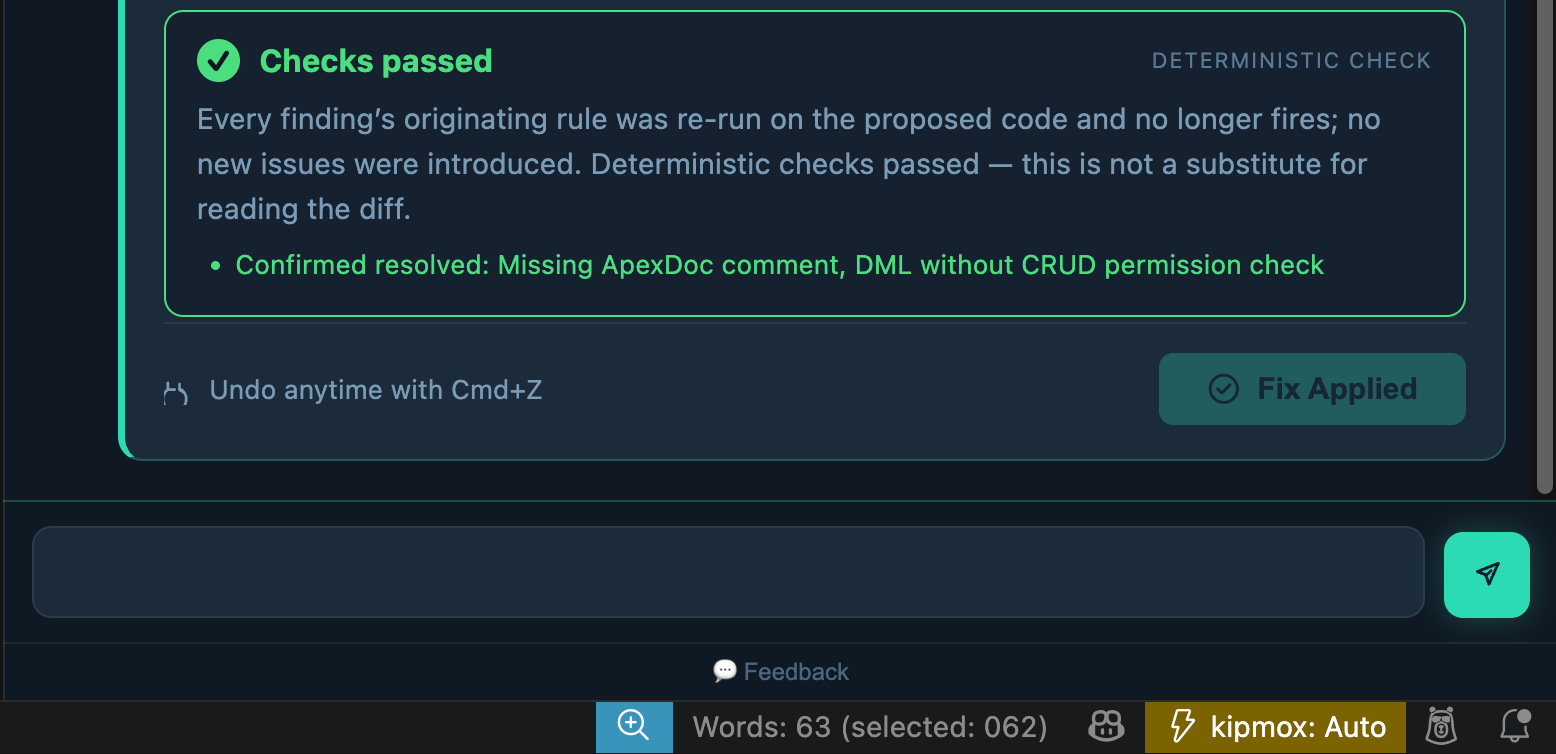 In Auto Fix Mode, fixes are applied to your code immediately after generation. Always use Safe Mode when working against production orgs or any org with live users.
## Switching modes
Switch modes two ways:
* **Status bar** — click **kipmox: Safe** or **kipmox: Auto** at the bottom of the VS Code window.
* **Command Palette** — run **kipmox: Toggle Safe Mode** (`Cmd+Shift+P` / `Ctrl+Shift+P`).
You'll see a confirmation:
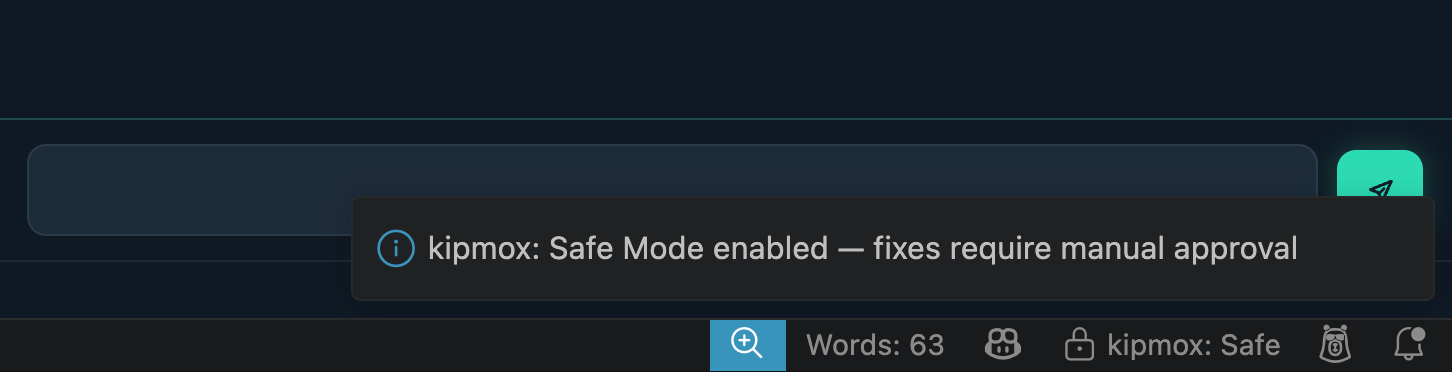
* Switching to Safe Mode: *"kipmox: Safe Mode enabled — fixes require manual approval"*
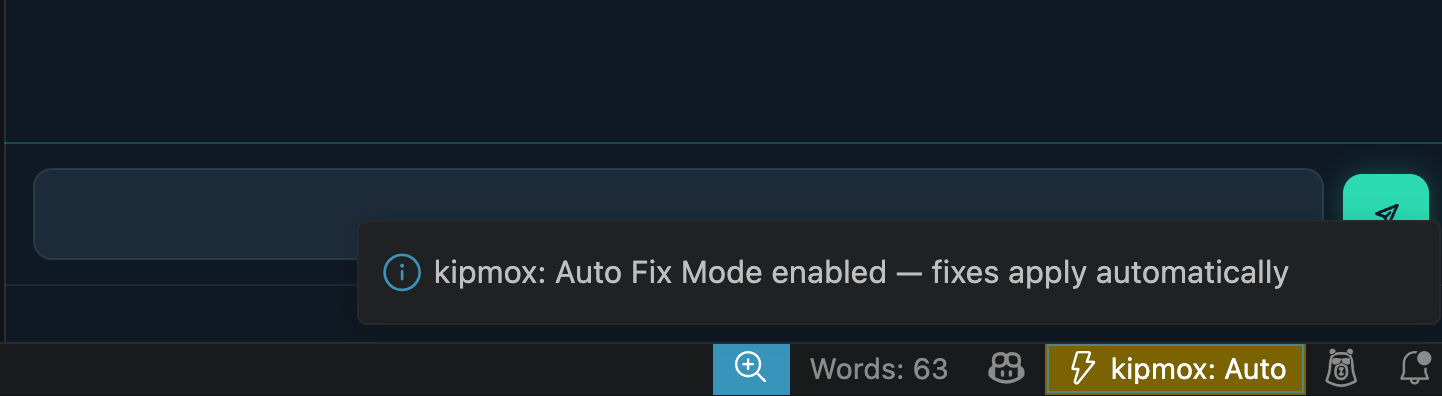
* Switching to Auto Fix Mode: *"kipmox: Auto Fix Mode enabled — fixes apply automatically"*
The mode persists across sessions — kipmox remembers your last setting.
In Auto Fix Mode, fixes are applied to your code immediately after generation. Always use Safe Mode when working against production orgs or any org with live users.
## Switching modes
Switch modes two ways:
* **Status bar** — click **kipmox: Safe** or **kipmox: Auto** at the bottom of the VS Code window.
* **Command Palette** — run **kipmox: Toggle Safe Mode** (`Cmd+Shift+P` / `Ctrl+Shift+P`).
You'll see a confirmation:
* Switching to Safe Mode: *"kipmox: Safe Mode enabled — fixes require manual approval"*
* Switching to Auto Fix Mode: *"kipmox: Auto Fix Mode enabled — fixes apply automatically"*
The mode persists across sessions — kipmox remembers your last setting.
 ## When to use each mode
**Use Safe Mode when:**
* Working against a production org or any org with live users
* Applying fixes with a Medium or Low confidence rating
* Applying a fix that carries a risk note
* You want to understand every change before it goes into your code
**Use Auto Fix Mode when:**
* Working in a personal development sandbox
* Iterating quickly through multiple deploy-fix cycles
* All generated fixes are High Confidence and Safe fix rated
* You are familiar with the codebase and comfortable with automatic changes
A good default workflow: use Safe Mode everywhere, switch to Auto Fix Mode only in your dev sandbox when you need to move fast.
## Common issues
The kipmox mode toggle appears in the VS Code status bar at the bottom of the screen. If it is not visible, make sure kipmox is installed and active — open any supported file (`.cls`, `.trigger`, `.js`, `.html`) to activate the extension. If it still doesn't appear, run **Developer: Reload Window** from the Command Palette.
You are in Auto Fix Mode. Click **kipmox: Auto** in the status bar to switch back to Safe Mode. If a fix was already applied that you want to revert, click **Undo Fix** in the notification or use `Cmd+Z` / `Ctrl+Z` in the editor.
Click **Undo Fix** in the notification, or press `Cmd+Z` / `Ctrl+Z`. kipmox auto-saves when a fix is applied, but VS Code keeps undo history across the save, so you can always revert.
Learn how fixes are generated and applied
Run kipmox fully local with no internet connection
## When to use each mode
**Use Safe Mode when:**
* Working against a production org or any org with live users
* Applying fixes with a Medium or Low confidence rating
* Applying a fix that carries a risk note
* You want to understand every change before it goes into your code
**Use Auto Fix Mode when:**
* Working in a personal development sandbox
* Iterating quickly through multiple deploy-fix cycles
* All generated fixes are High Confidence and Safe fix rated
* You are familiar with the codebase and comfortable with automatic changes
A good default workflow: use Safe Mode everywhere, switch to Auto Fix Mode only in your dev sandbox when you need to move fast.
## Common issues
The kipmox mode toggle appears in the VS Code status bar at the bottom of the screen. If it is not visible, make sure kipmox is installed and active — open any supported file (`.cls`, `.trigger`, `.js`, `.html`) to activate the extension. If it still doesn't appear, run **Developer: Reload Window** from the Command Palette.
You are in Auto Fix Mode. Click **kipmox: Auto** in the status bar to switch back to Safe Mode. If a fix was already applied that you want to revert, click **Undo Fix** in the notification or use `Cmd+Z` / `Ctrl+Z` in the editor.
Click **Undo Fix** in the notification, or press `Cmd+Z` / `Ctrl+Z`. kipmox auto-saves when a fix is applied, but VS Code keeps undo history across the save, so you can always revert.
Learn how fixes are generated and applied
Run kipmox fully local with no internet connection