> ## Documentation Index
> Fetch the complete documentation index at: https://docs.kipmox.com/llms.txt
> Use this file to discover all available pages before exploring further.
# Commands
> Every kipmox command — what it does, when to use it, and where to find it.
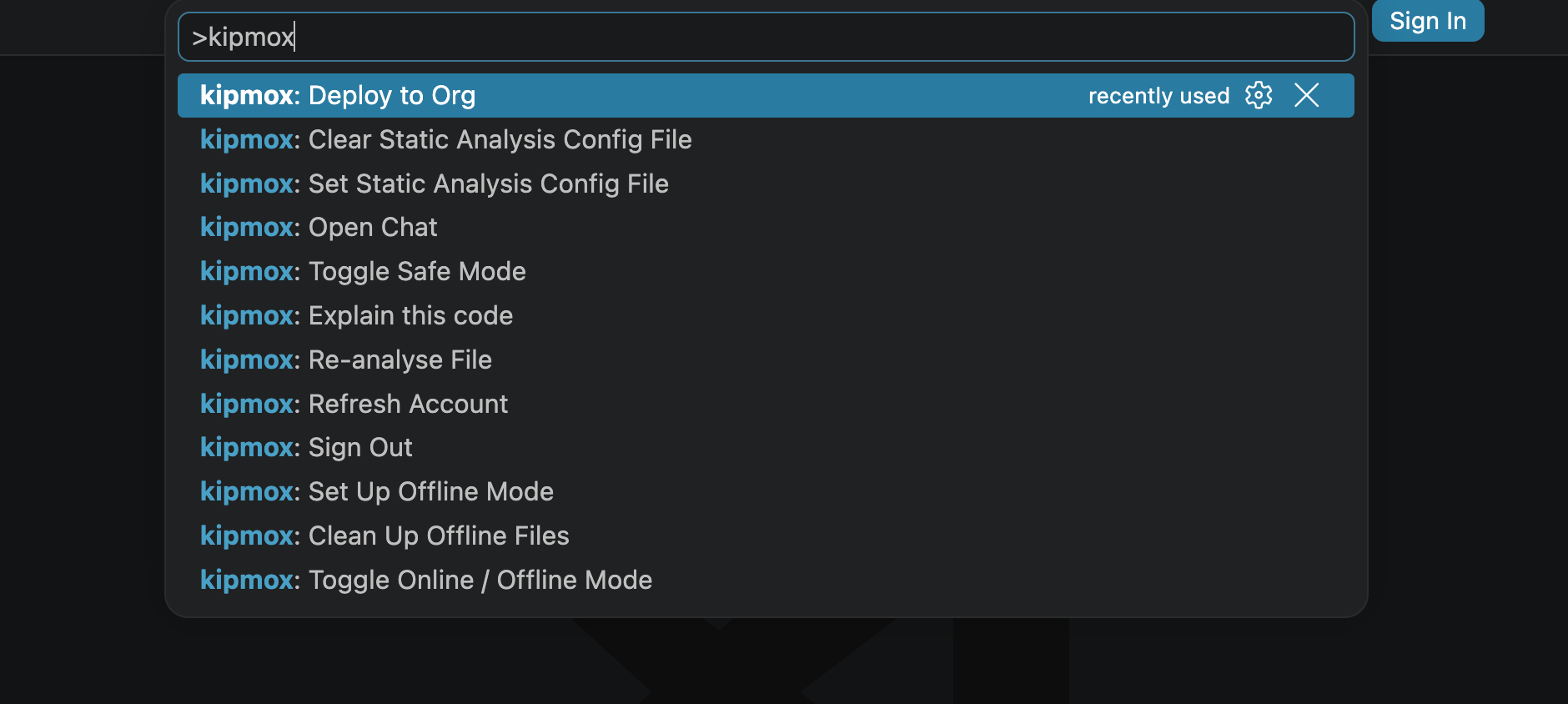
Every kipmox command lives in the **Command Palette** (`Cmd+Shift+P` / `Ctrl+Shift+P`). Type `kipmox` to filter the full list.
Three commands are also on the **right-click menu** — `kipmox: Deploy to Org`, `kipmox: Explain this code`, and `kipmox: Re-analyse File` — in both the editor and the Explorer. Every command is always available from the **Command Palette**, and a couple also have a **status bar** shortcut — each command's **Available from** row below says where.
 ## Deploy
### kipmox: Deploy to Org
| | |
| ------------------ | -------------------------------------------------------------------------------------------------------------------------------------------------------- |
| **What it does** | Deploys the active file to your Salesforce CLI default org. For LWC, deploys the entire component bundle. On failure, opens the **Deploy Errors** panel. |
| **When to use** | Any time you want to deploy an Apex or LWC file without leaving VS Code. |
| **Available from** | Editor right-click · Explorer right-click · Command Palette |
See [Deploy to Org](/workflows/deploy-to-org) for the full workflow.
## Code analysis & documentation
### kipmox: Explain this code
| | |
| ------------------ | ---------------------------------------------------------------------------------------------------------------------------------------------------- |
| **What it does** | Generates a plain-English document for the active Apex class, trigger, or LWC — what it does, how it's structured, and any static-analysis findings. |
| **When to use** | When you want to understand an unfamiliar file or produce documentation for it. |
| **Available from** | Editor right-click · Explorer right-click · Command Palette |
See [Generate Documentation](/workflows/generate-documentation).
### kipmox: Re-analyse File
| | |
| ------------------ | ------------------------------------------------------------------------------------------------------------------ |
| **What it does** | Re-runs code analysis on the active file and refreshes all warnings and CodeLens links instantly — without saving. |
| **When to use** | To force a fresh analysis after manual edits, or when CodeLens links look out of date. |
| **Available from** | Editor right-click · Explorer right-click · Command Palette |
kipmox shows a notification when the command completes:
| Situation | Notification |
| --------------------- | ------------------------------------------------------------------------------------ |
| Supported file open | "kipmox: Re-analysis complete — `filename`" |
| No file open | "kipmox: Open a file first to re-analyse." |
| Unsupported file type | "kipmox: Re-analyse only supports Apex (.cls, .trigger) and LWC (.js, .html) files." |
Analysis normally runs when you **save** a file — not when you open it. Use this command to re-analyse on demand. See [Code Analysis](/workflows/code-analysis).
### kipmox: Open Chat
| | |
| ------------------ | --------------------------------------------------------------------------------------------------------------------------------------------------------------------------- |
| **What it does** | Opens the **kipmox — Code Analysis** panel with an empty chat. Ask anything about your Apex or LWC — errors, best practices, explanations, or general Salesforce questions. |
| **When to use** | When you want to ask kipmox a question outside the normal fix workflow. |
| **Available from** | Command Palette |
If you click **kipmox: 💡 Explain & Fix** on a flagged line while the chat is open, the panel resets to show that specific fix. Use Open Chat to start a fresh conversation without triggering analysis.
### kipmox: Set Static Analysis Config File
| | |
| ------------------ | ------------------------------------------------------------------------------------------------------------------------- |
| **What it does** | Points kipmox at your team's custom YAML rules file, so analysis flags your own conventions alongside the built-in rules. |
| **When to use** | When your team maintains custom code-analysis rules. |
| **Available from** | Command Palette |
See [Code Analysis Rules](/reference/code-analysis-rules).
### kipmox: Clear Static Analysis Config File
| | |
| ------------------ | ---------------------------------------------------------------------------------- |
| **What it does** | Removes the custom YAML rules file, returning analysis to the built-in rules only. |
| **When to use** | When you want to stop using custom rules. |
| **Available from** | Command Palette |
## Modes
### kipmox: Toggle Safe Mode
| | |
| ------------------ | ---------------------------------------------------------------------------------------------------------------------------------- |
| **What it does** | Switches between **Safe Mode** and **Auto Fix Mode** — the same as clicking **kipmox: Safe** / **kipmox: Auto** in the status bar. |
| **When to use** | When you prefer the Command Palette over the status bar toggle. |
| **Available from** | Command Palette · Status bar |
* Switching to Safe Mode: *"Safe Mode enabled — fixes require manual approval"*
* Switching to Auto Fix Mode: *"Auto Fix Mode enabled — fixes apply automatically"*
See [Safe Mode](/configuration/safe-mode).
### kipmox: Toggle Online / Offline Mode
| | |
| ------------------ | ------------------------------------------------------------------------------------------------------- |
| **What it does** | Switches between online mode (cloud AI) and offline mode (local Ollama model) without opening Settings. |
| **When to use** | Any time you want to switch between cloud AI and local AI quickly. |
| **Available from** | Command Palette |
| Current mode | Result |
| ------------ | ----------------------------------------------------------------------------------- |
| Online | Switches to Offline — "kipmox: Switched to Offline Mode — using local Ollama model" |
| Offline | Switches to Online — "kipmox: Switched to Online Mode — using cloud AI" |
Switching **to Offline Mode** has extra checks:
* **Free plan** — shows "kipmox: Offline Mode is a Pro feature." with an **Upgrade to Pro** button
* **Pro, offline not set up** — shows "kipmox: Offline Mode requires setup first. Set it up now?" with a **Set Up Offline Mode** button
* **Pro, offline set up** — switches immediately
Switching back to Online Mode always works with no checks.
## Offline Mode
### kipmox: Set Up Offline Mode
| | |
| ------------------ | ------------------------------------------------------------------------------------------------------------------------------------------- |
| **What it does** | Launches the guided setup — installs Ollama and downloads a local AI model so kipmox runs fully offline, with no code leaving your machine. |
| **When to use** | When you want to set up local offline AI for the first time. |
| **Available from** | Command Palette |
Offline Mode requires a Pro plan. Running this on Free shows an upgrade prompt.
See [Offline Mode](/configuration/offline-mode).
### kipmox: Clean Up Offline Files
| | |
| ------------------ | ------------------------------------------------------------------------------------------------------- |
| **What it does** | Guided removal of the Offline Mode setup — removes the local AI model and optionally uninstalls Ollama. |
| **When to use** | When you want to remove Offline Mode and free up disk space, or before switching machines. |
| **Available from** | Command Palette |
## Account
### kipmox: Refresh Account
| | |
| ------------------ | ------------------------------------------------------------------------------------- |
| **What it does** | Re-checks your sign-in and plan status with the kipmox backend and updates the panel. |
| **When to use** | Right after upgrading to Pro, or if the panel shows the wrong plan. |
| **Available from** | Command Palette |
### kipmox: Sign Out
| | |
| ------------------ | ----------------------------------------------------------------------------------- |
| **What it does** | Signs you out of kipmox in VS Code. You can sign back in anytime with a magic link. |
| **When to use** | When switching accounts or signing out on a shared machine. |
| **Available from** | Command Palette |
The full deploy-and-fix workflow
Built-in rules and custom YAML config
## Deploy
### kipmox: Deploy to Org
| | |
| ------------------ | -------------------------------------------------------------------------------------------------------------------------------------------------------- |
| **What it does** | Deploys the active file to your Salesforce CLI default org. For LWC, deploys the entire component bundle. On failure, opens the **Deploy Errors** panel. |
| **When to use** | Any time you want to deploy an Apex or LWC file without leaving VS Code. |
| **Available from** | Editor right-click · Explorer right-click · Command Palette |
See [Deploy to Org](/workflows/deploy-to-org) for the full workflow.
## Code analysis & documentation
### kipmox: Explain this code
| | |
| ------------------ | ---------------------------------------------------------------------------------------------------------------------------------------------------- |
| **What it does** | Generates a plain-English document for the active Apex class, trigger, or LWC — what it does, how it's structured, and any static-analysis findings. |
| **When to use** | When you want to understand an unfamiliar file or produce documentation for it. |
| **Available from** | Editor right-click · Explorer right-click · Command Palette |
See [Generate Documentation](/workflows/generate-documentation).
### kipmox: Re-analyse File
| | |
| ------------------ | ------------------------------------------------------------------------------------------------------------------ |
| **What it does** | Re-runs code analysis on the active file and refreshes all warnings and CodeLens links instantly — without saving. |
| **When to use** | To force a fresh analysis after manual edits, or when CodeLens links look out of date. |
| **Available from** | Editor right-click · Explorer right-click · Command Palette |
kipmox shows a notification when the command completes:
| Situation | Notification |
| --------------------- | ------------------------------------------------------------------------------------ |
| Supported file open | "kipmox: Re-analysis complete — `filename`" |
| No file open | "kipmox: Open a file first to re-analyse." |
| Unsupported file type | "kipmox: Re-analyse only supports Apex (.cls, .trigger) and LWC (.js, .html) files." |
Analysis normally runs when you **save** a file — not when you open it. Use this command to re-analyse on demand. See [Code Analysis](/workflows/code-analysis).
### kipmox: Open Chat
| | |
| ------------------ | --------------------------------------------------------------------------------------------------------------------------------------------------------------------------- |
| **What it does** | Opens the **kipmox — Code Analysis** panel with an empty chat. Ask anything about your Apex or LWC — errors, best practices, explanations, or general Salesforce questions. |
| **When to use** | When you want to ask kipmox a question outside the normal fix workflow. |
| **Available from** | Command Palette |
If you click **kipmox: 💡 Explain & Fix** on a flagged line while the chat is open, the panel resets to show that specific fix. Use Open Chat to start a fresh conversation without triggering analysis.
### kipmox: Set Static Analysis Config File
| | |
| ------------------ | ------------------------------------------------------------------------------------------------------------------------- |
| **What it does** | Points kipmox at your team's custom YAML rules file, so analysis flags your own conventions alongside the built-in rules. |
| **When to use** | When your team maintains custom code-analysis rules. |
| **Available from** | Command Palette |
See [Code Analysis Rules](/reference/code-analysis-rules).
### kipmox: Clear Static Analysis Config File
| | |
| ------------------ | ---------------------------------------------------------------------------------- |
| **What it does** | Removes the custom YAML rules file, returning analysis to the built-in rules only. |
| **When to use** | When you want to stop using custom rules. |
| **Available from** | Command Palette |
## Modes
### kipmox: Toggle Safe Mode
| | |
| ------------------ | ---------------------------------------------------------------------------------------------------------------------------------- |
| **What it does** | Switches between **Safe Mode** and **Auto Fix Mode** — the same as clicking **kipmox: Safe** / **kipmox: Auto** in the status bar. |
| **When to use** | When you prefer the Command Palette over the status bar toggle. |
| **Available from** | Command Palette · Status bar |
* Switching to Safe Mode: *"Safe Mode enabled — fixes require manual approval"*
* Switching to Auto Fix Mode: *"Auto Fix Mode enabled — fixes apply automatically"*
See [Safe Mode](/configuration/safe-mode).
### kipmox: Toggle Online / Offline Mode
| | |
| ------------------ | ------------------------------------------------------------------------------------------------------- |
| **What it does** | Switches between online mode (cloud AI) and offline mode (local Ollama model) without opening Settings. |
| **When to use** | Any time you want to switch between cloud AI and local AI quickly. |
| **Available from** | Command Palette |
| Current mode | Result |
| ------------ | ----------------------------------------------------------------------------------- |
| Online | Switches to Offline — "kipmox: Switched to Offline Mode — using local Ollama model" |
| Offline | Switches to Online — "kipmox: Switched to Online Mode — using cloud AI" |
Switching **to Offline Mode** has extra checks:
* **Free plan** — shows "kipmox: Offline Mode is a Pro feature." with an **Upgrade to Pro** button
* **Pro, offline not set up** — shows "kipmox: Offline Mode requires setup first. Set it up now?" with a **Set Up Offline Mode** button
* **Pro, offline set up** — switches immediately
Switching back to Online Mode always works with no checks.
## Offline Mode
### kipmox: Set Up Offline Mode
| | |
| ------------------ | ------------------------------------------------------------------------------------------------------------------------------------------- |
| **What it does** | Launches the guided setup — installs Ollama and downloads a local AI model so kipmox runs fully offline, with no code leaving your machine. |
| **When to use** | When you want to set up local offline AI for the first time. |
| **Available from** | Command Palette |
Offline Mode requires a Pro plan. Running this on Free shows an upgrade prompt.
See [Offline Mode](/configuration/offline-mode).
### kipmox: Clean Up Offline Files
| | |
| ------------------ | ------------------------------------------------------------------------------------------------------- |
| **What it does** | Guided removal of the Offline Mode setup — removes the local AI model and optionally uninstalls Ollama. |
| **When to use** | When you want to remove Offline Mode and free up disk space, or before switching machines. |
| **Available from** | Command Palette |
## Account
### kipmox: Refresh Account
| | |
| ------------------ | ------------------------------------------------------------------------------------- |
| **What it does** | Re-checks your sign-in and plan status with the kipmox backend and updates the panel. |
| **When to use** | Right after upgrading to Pro, or if the panel shows the wrong plan. |
| **Available from** | Command Palette |
### kipmox: Sign Out
| | |
| ------------------ | ----------------------------------------------------------------------------------- |
| **What it does** | Signs you out of kipmox in VS Code. You can sign back in anytime with a magic link. |
| **When to use** | When switching accounts or signing out on a shared machine. |
| **Available from** | Command Palette |
The full deploy-and-fix workflow
Built-in rules and custom YAML config