> ## Documentation Index
> Fetch the complete documentation index at: https://docs.kipmox.com/llms.txt
> Use this file to discover all available pages before exploring further.
# Code Analysis
> kipmox analyses your Apex and LWC code and flags issues before they become deployment errors.
kipmox analyses your Apex and LWC code and flags issues inline — highlighted lines in the editor and CodeLens links above each affected line — so you catch problems before they fail a deployment.
## Set up the Salesforce Code Analyzer
kipmox's richest analysis comes from the [Salesforce Code Analyzer](https://developer.salesforce.com/docs/platform/salesforce-code-analyzer/overview) — the same PMD and ESLint engines Salesforce ships — combined with kipmox's own Salesforce-specific rules. **Installing it is strongly recommended.** Without it, kipmox falls back to a smaller set of built-in rules, so you'll see fewer warnings.
The Code Analyzer's Apex rules run on **Java 11 or later** — this is the dependency most people are missing. Install a JDK (for example [Adoptium Temurin](https://adoptium.net/)), then confirm it's on your PATH:
```bash theme={null}
java -version
```
If this prints a version (11 or higher), you're good.
Add it to your Salesforce CLI:
```bash theme={null}
sf plugins install code-analyzer
```
Already have it? `sf plugins` lists your installed plugins.
```bash theme={null}
sf code-analyzer run --help
```
If it prints usage instead of an error, you're set — reload VS Code and re-analyse a file.
**No Python needed.** kipmox analyses Apex and LWC *code*, so it disables the analyzer's Flow engine — the only one that requires Python. You do **not** need to install Python for code analysis.
**If the Code Analyzer isn't installed**, kipmox still analyses your code using its own built-in Salesforce rules — you just get a narrower set of findings. Install the analyzer (and Java) for full coverage. You can turn this fallback off with the `kipmox.analysis.allowInternalRulesFallback` setting.
## When analysis runs
kipmox analyses a file in one of two ways — it does **not** analyse automatically when you first open a file:
* **Save the file** (after a change), or
* Run **kipmox: Re-analyse File** — from the Command Palette (`Cmd+Shift+P` / `Ctrl+Shift+P`), or by right-clicking the file in the editor or the Explorer
Once a file has been analysed, its results **persist** — close and reopen the file and the highlights and CodeLens links are still there. To refresh them, save the file again or re-run **kipmox: Re-analyse File**.
When a file is analysed:
* Affected lines are highlighted in the editor
* A **kipmox: 💡 Explain & Fix** CodeLens link appears above each flagged line
* Hover over a highlighted line for a quick summary of the issue
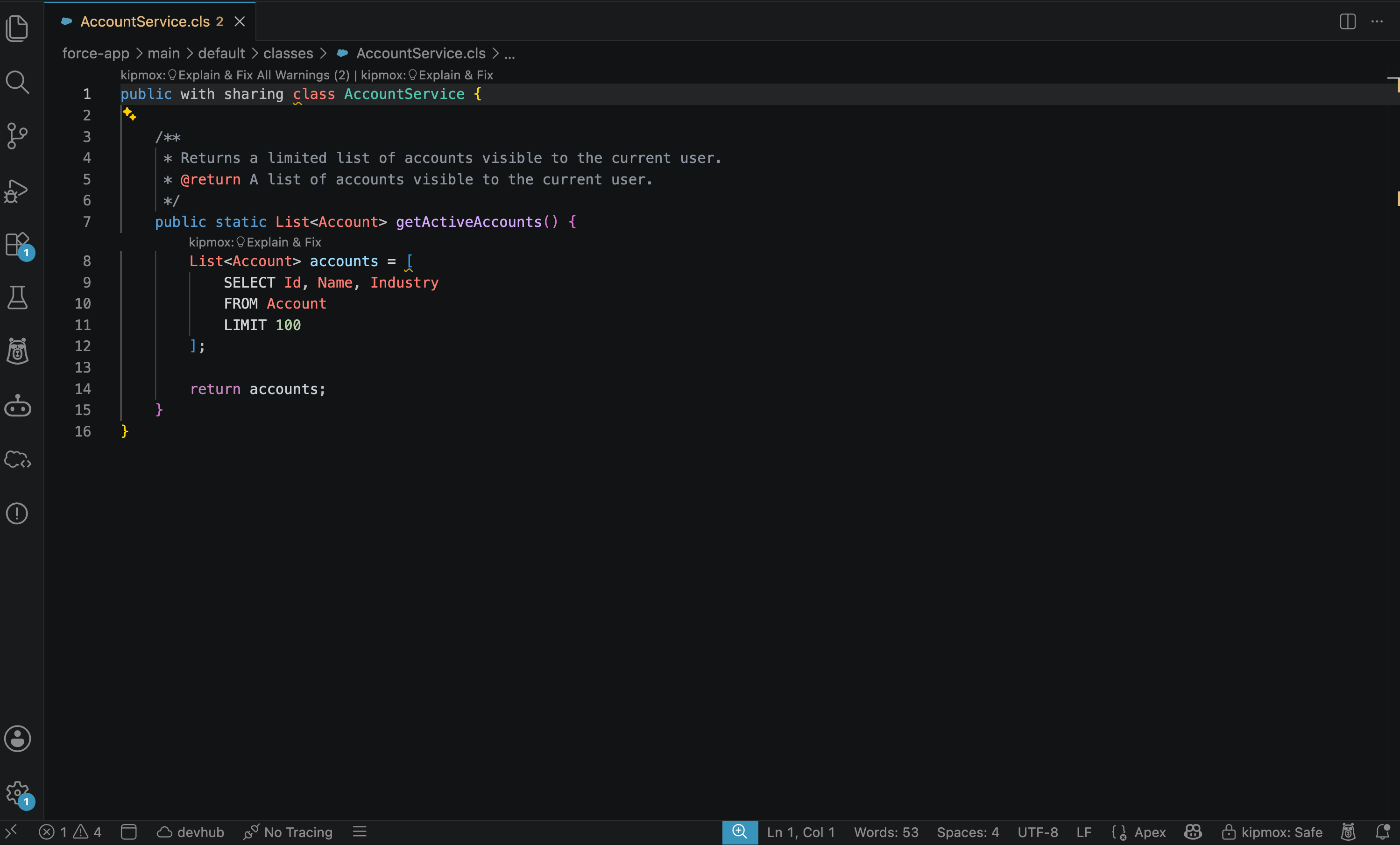 ## Explain & Fix
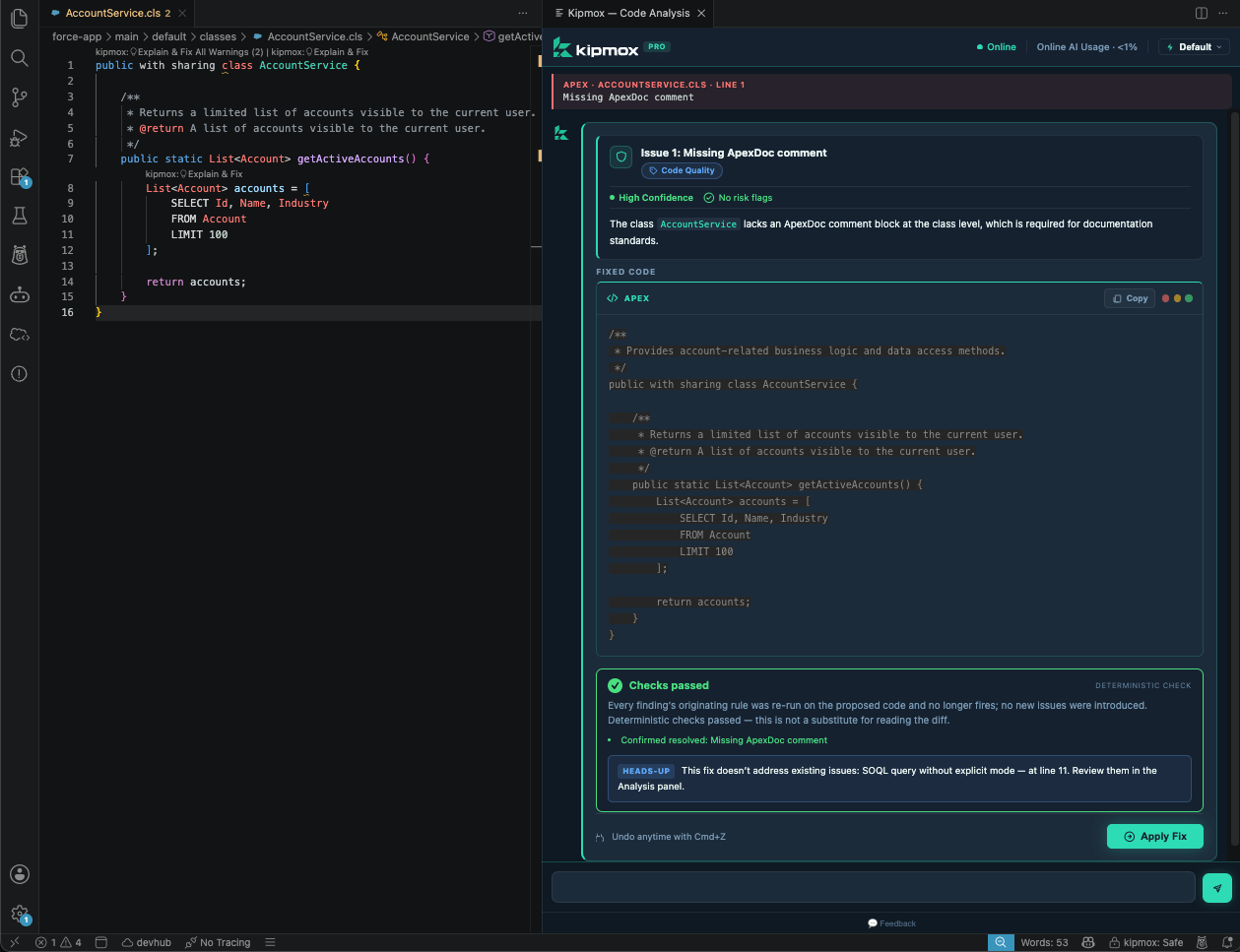
Click **kipmox: 💡 Explain & Fix** above any flagged line to open the **kipmox — Code Analysis** panel. This addresses **only that one issue** — the warning on that line. To fix every warning in the file at once, use **Explain & Fix All Warnings** (below).
The panel shows:
* The issue title and category (Security / Governor Limit / Code Quality)
* Confidence and risk ratings
* A plain-English explanation of the issue
* **Fixed Code** — the corrected code for that issue
* **What Changed** — a summary of exactly what was modified and why
* **Overall Summary** — confidence and risk for the fix
## Explain & Fix
Click **kipmox: 💡 Explain & Fix** above any flagged line to open the **kipmox — Code Analysis** panel. This addresses **only that one issue** — the warning on that line. To fix every warning in the file at once, use **Explain & Fix All Warnings** (below).
The panel shows:
* The issue title and category (Security / Governor Limit / Code Quality)
* Confidence and risk ratings
* A plain-English explanation of the issue
* **Fixed Code** — the corrected code for that issue
* **What Changed** — a summary of exactly what was modified and why
* **Overall Summary** — confidence and risk for the fix
 ### Applying a fix
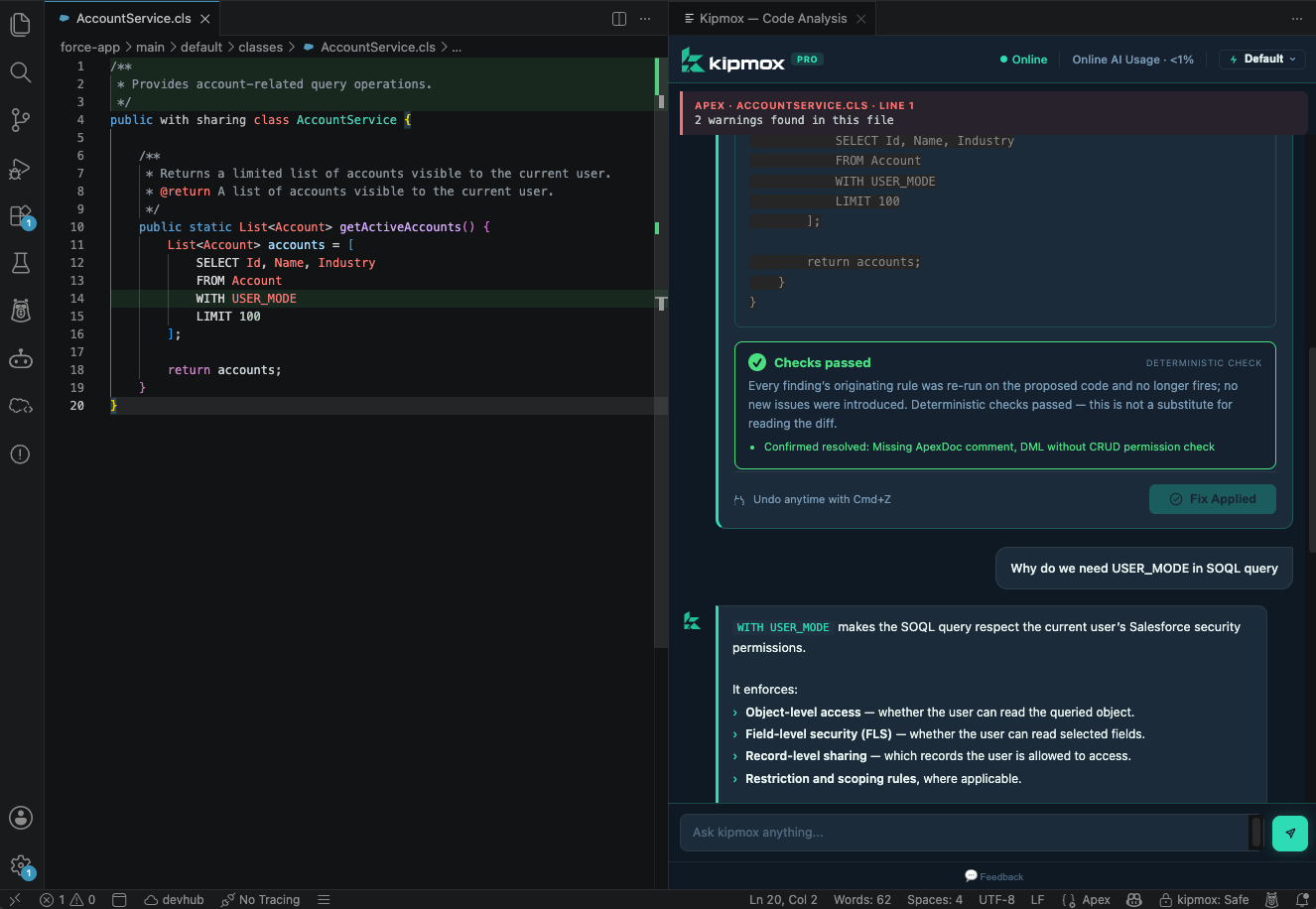
On **Pro**, click **Apply Fix** to apply the change. The button changes to **Fix Applied**, changed lines highlight green, and kipmox **saves the file automatically**:
**"kipmox: Fix applied — changed lines highlighted in green. Undo anytime with Cmd+Z."**
To revert, click **Undo Fix** or press `Cmd+Z` / `Ctrl+Z`.
On **Free**, kipmox shows the full analysis and the corrected code — **copy it and paste it into your file**. One-click **Apply Fix**, bulk **Fix All**, and **Auto Fix Mode** are Pro.
On the Free plan, fixes are limited to **15 every 4 hours** — see [Plans & Limits](/help/plans-and-limits).
## Pro — Explain & Fix All Warnings
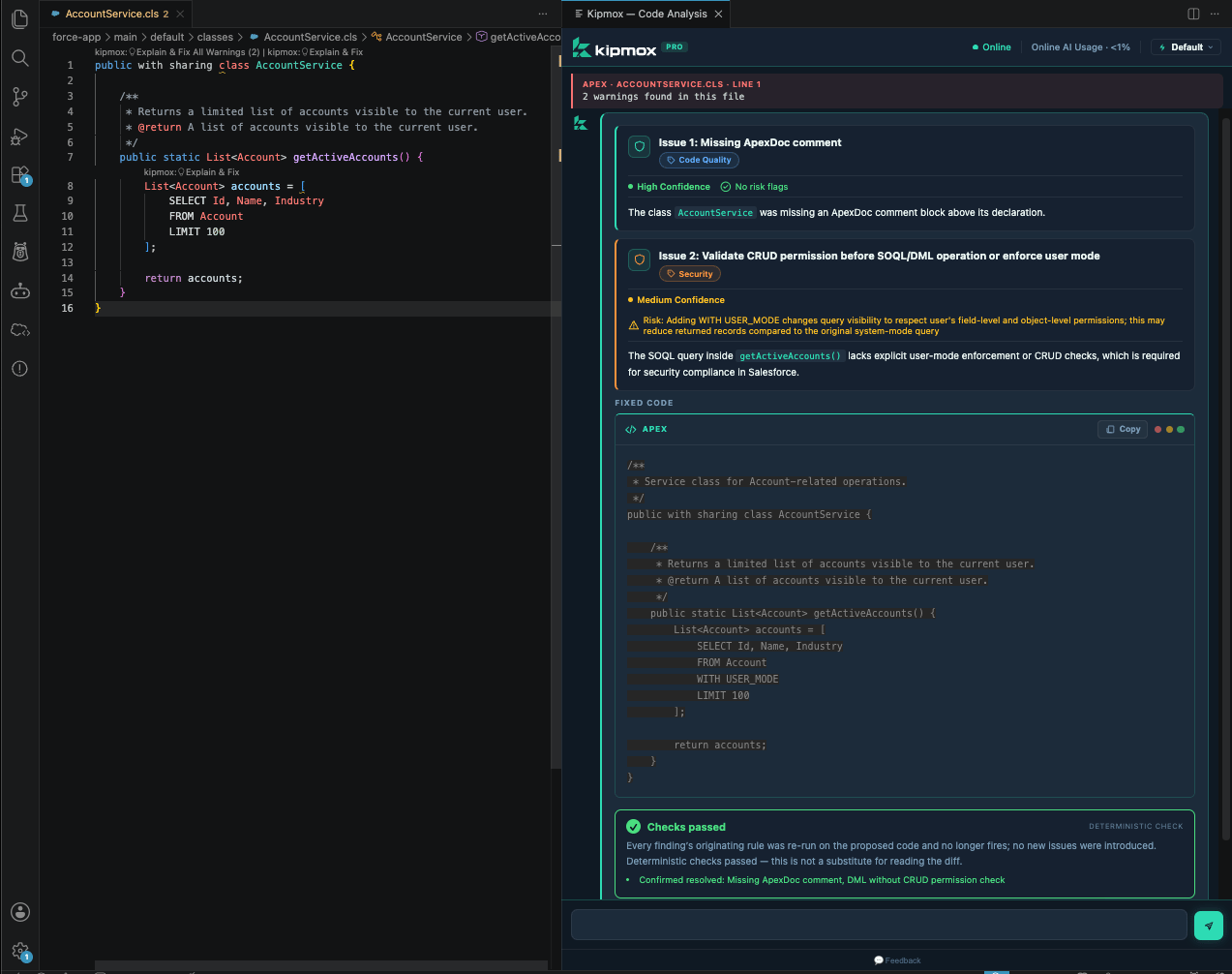
On Pro, a **kipmox: 💡 Explain & Fix All Warnings (n)** CodeLens link appears at the top of the file — where `n` is the total number of warnings found. Click it to analyse and fix every issue in the file at once.
The Code Analysis panel opens with:
* Every issue listed with its category, confidence, and explanation
* **Fixed Code** — the fully corrected file
* **What Changed** — every issue summarised in one list
* **Overall Summary** — combined confidence and risk across all fixes
* **Apply Fix** — applies all changes in one click. Changed lines highlight green and the file saves automatically; **Undo Fix** (or `Cmd+Z`) reverts
### Applying a fix
On **Pro**, click **Apply Fix** to apply the change. The button changes to **Fix Applied**, changed lines highlight green, and kipmox **saves the file automatically**:
**"kipmox: Fix applied — changed lines highlighted in green. Undo anytime with Cmd+Z."**
To revert, click **Undo Fix** or press `Cmd+Z` / `Ctrl+Z`.
On **Free**, kipmox shows the full analysis and the corrected code — **copy it and paste it into your file**. One-click **Apply Fix**, bulk **Fix All**, and **Auto Fix Mode** are Pro.
On the Free plan, fixes are limited to **15 every 4 hours** — see [Plans & Limits](/help/plans-and-limits).
## Pro — Explain & Fix All Warnings
On Pro, a **kipmox: 💡 Explain & Fix All Warnings (n)** CodeLens link appears at the top of the file — where `n` is the total number of warnings found. Click it to analyse and fix every issue in the file at once.
The Code Analysis panel opens with:
* Every issue listed with its category, confidence, and explanation
* **Fixed Code** — the fully corrected file
* **What Changed** — every issue summarised in one list
* **Overall Summary** — combined confidence and risk across all fixes
* **Apply Fix** — applies all changes in one click. Changed lines highlight green and the file saves automatically; **Undo Fix** (or `Cmd+Z`) reverts
 Explain & Fix All Warnings is not visible to Free plan users. Upgrade to Pro to access it.
## The Code Analysis panel
Both **Explain & Fix** and **Explain & Fix All Warnings** open the same **kipmox — Code Analysis** panel. It includes a chat input at the bottom — use it to ask follow-up questions about the issue, request an alternative fix, or understand the Salesforce context in more detail.
On the Free plan, usage counts toward your 4-hour limits — see [Plans & Limits](/help/plans-and-limits).
Explain & Fix All Warnings is not visible to Free plan users. Upgrade to Pro to access it.
## The Code Analysis panel
Both **Explain & Fix** and **Explain & Fix All Warnings** open the same **kipmox — Code Analysis** panel. It includes a chat input at the bottom — use it to ask follow-up questions about the issue, request an alternative fix, or understand the Salesforce context in more detail.
On the Free plan, usage counts toward your 4-hour limits — see [Plans & Limits](/help/plans-and-limits).
 Chat messages are limited to 4,000 characters per message to ensure fair usage for all users.
## What kipmox catches
kipmox analyses your code for governor limit violations, security issues, LWC best practices, and code quality problems across Apex and LWC files.
View the full list of rules, severity levels, and what each one catches
### Your own rules (custom YAML)
If your project has a static-analysis config file, kipmox applies **your custom rules** on top of its built-in checks — so your team's standards are flagged the same way. Point kipmox at your file with **kipmox: Set Static Analysis Config File**, and remove it with **kipmox: Clear Static Analysis Config File**.
## Supported file types
| Extension | Type |
| ---------- | ----------------- |
| `.cls` | Apex class |
| `.trigger` | Apex trigger |
| `.js` | LWC JavaScript |
| `.html` | LWC HTML template |
## Common issues
kipmox doesn't analyse a file just because it's open. **Save the file** (after a small change) or run **kipmox: Re-analyse File** from the Command Palette to analyse it. If nothing appears after that, run **Developer: Reload Window** and re-analyse.
Explain & Fix All Warnings is a Pro feature and is not shown to Free plan users. On the Free plan, use **kipmox: 💡 Explain & Fix** above each individual flagged line.
The Free plan includes **15 fixes and 2 documents every 4 hours**; each resets 4 hours after you reach it. Upgrade to Pro to remove the limits — see [Plans & Limits](/help/plans-and-limits).
Review the confidence and risk ratings in the Code Analysis panel. For issues flagged as High Risk or Low Confidence, use the explanation to understand the problem and apply the fix manually. Use the chat input at the bottom of the panel to ask follow-up questions.
Deploy Apex and LWC, and fix errors after a failed deploy
The checks behind every fix
Chat messages are limited to 4,000 characters per message to ensure fair usage for all users.
## What kipmox catches
kipmox analyses your code for governor limit violations, security issues, LWC best practices, and code quality problems across Apex and LWC files.
View the full list of rules, severity levels, and what each one catches
### Your own rules (custom YAML)
If your project has a static-analysis config file, kipmox applies **your custom rules** on top of its built-in checks — so your team's standards are flagged the same way. Point kipmox at your file with **kipmox: Set Static Analysis Config File**, and remove it with **kipmox: Clear Static Analysis Config File**.
## Supported file types
| Extension | Type |
| ---------- | ----------------- |
| `.cls` | Apex class |
| `.trigger` | Apex trigger |
| `.js` | LWC JavaScript |
| `.html` | LWC HTML template |
## Common issues
kipmox doesn't analyse a file just because it's open. **Save the file** (after a small change) or run **kipmox: Re-analyse File** from the Command Palette to analyse it. If nothing appears after that, run **Developer: Reload Window** and re-analyse.
Explain & Fix All Warnings is a Pro feature and is not shown to Free plan users. On the Free plan, use **kipmox: 💡 Explain & Fix** above each individual flagged line.
The Free plan includes **15 fixes and 2 documents every 4 hours**; each resets 4 hours after you reach it. Upgrade to Pro to remove the limits — see [Plans & Limits](/help/plans-and-limits).
Review the confidence and risk ratings in the Code Analysis panel. For issues flagged as High Risk or Low Confidence, use the explanation to understand the problem and apply the fix manually. Use the chat input at the bottom of the panel to ask follow-up questions.
Deploy Apex and LWC, and fix errors after a failed deploy
The checks behind every fix