> ## Documentation Index
> Fetch the complete documentation index at: https://docs.kipmox.com/llms.txt
> Use this file to discover all available pages before exploring further.
# Deploy to Org
> Deploy Apex and LWC from VS Code — and when a deploy fails, explain and fix every error without leaving your editor.
kipmox deploys your Apex and LWC files directly to your Salesforce org from VS Code. When a deploy fails, it opens the **Deploy Errors** panel automatically — every error explained and ready to fix, without leaving your editor.
## How to deploy
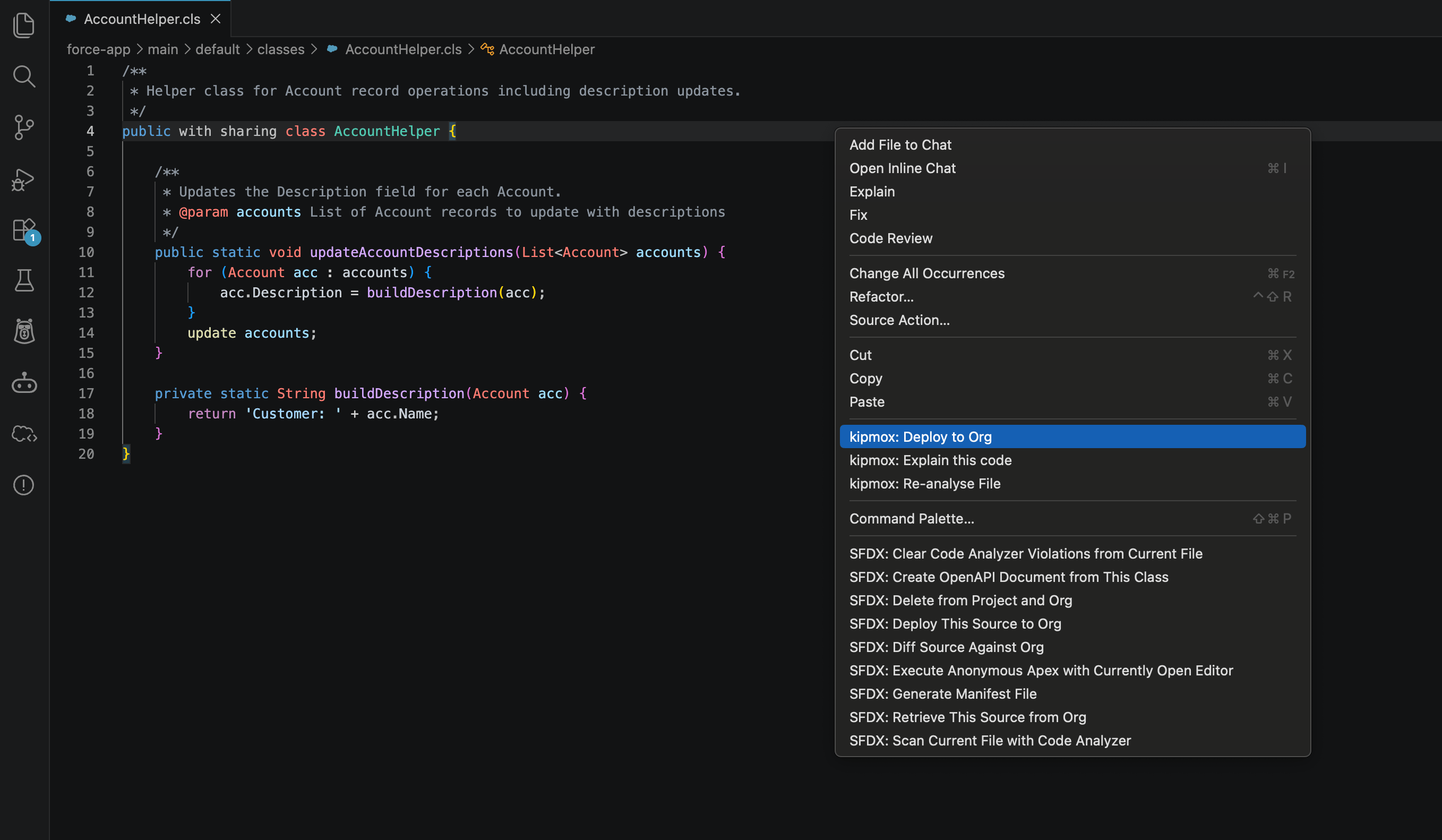
Start a deploy any of three ways — all run **kipmox: Deploy to Org**:
* **Right-click in the editor** — open a supported file, right-click anywhere, and choose **kipmox: Deploy to Org**.
* **Right-click in the Explorer** — right-click a supported file in the Explorer panel.
* **Command Palette** — press `Cmd+Shift+P` / `Ctrl+Shift+P` and run **kipmox: Deploy to Org**.
 kipmox deploys to your **current Salesforce CLI default org**. Check or change it from the org name in the VS Code status bar before deploying.
## On success
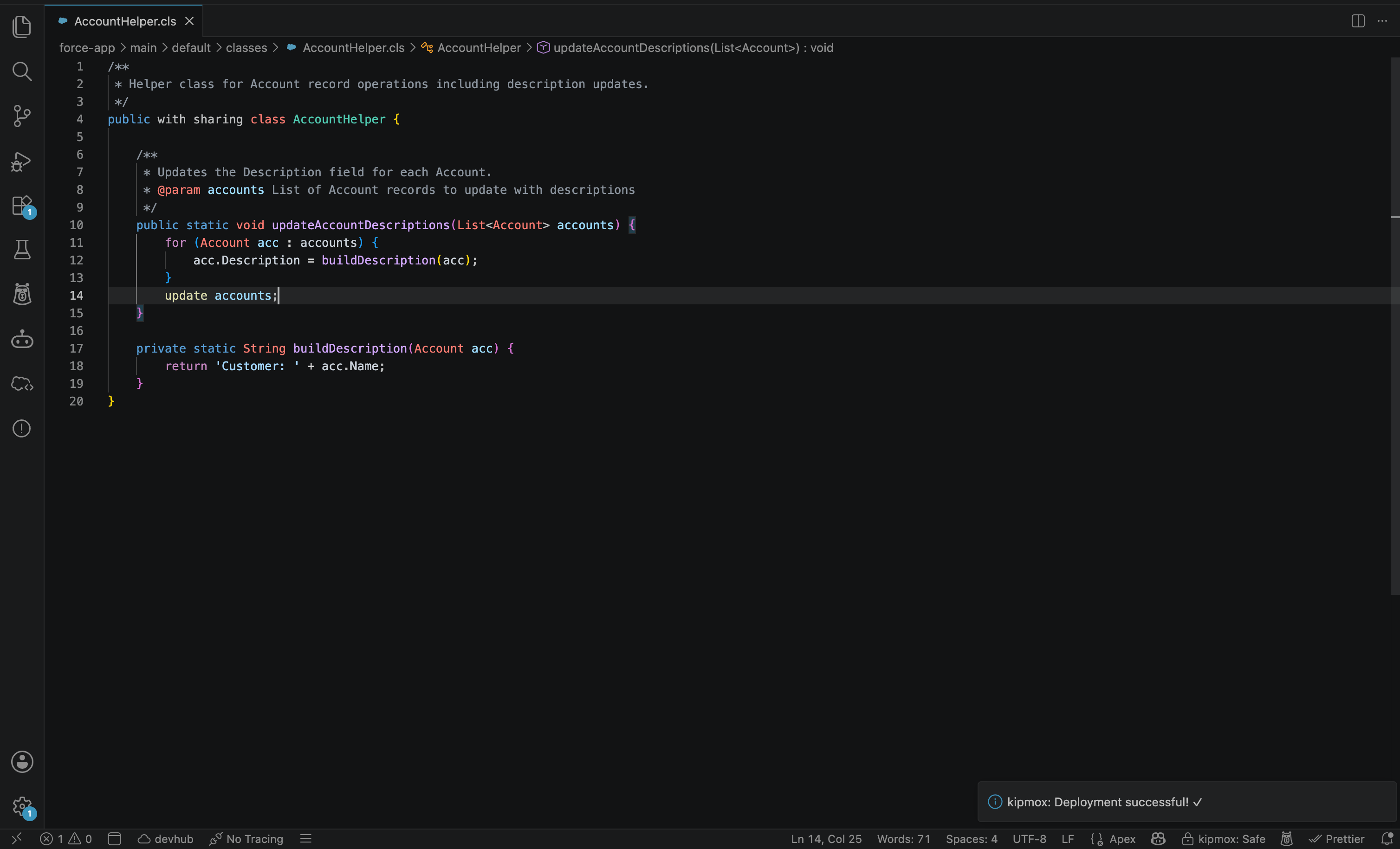
When the deploy succeeds, kipmox shows **"kipmox: Deployment successful!"** at the bottom of VS Code. Your code is live — nothing else to do.
kipmox deploys to your **current Salesforce CLI default org**. Check or change it from the org name in the VS Code status bar before deploying.
## On success
When the deploy succeeds, kipmox shows **"kipmox: Deployment successful!"** at the bottom of VS Code. Your code is live — nothing else to do.
 ## On failure — the Deploy Errors panel
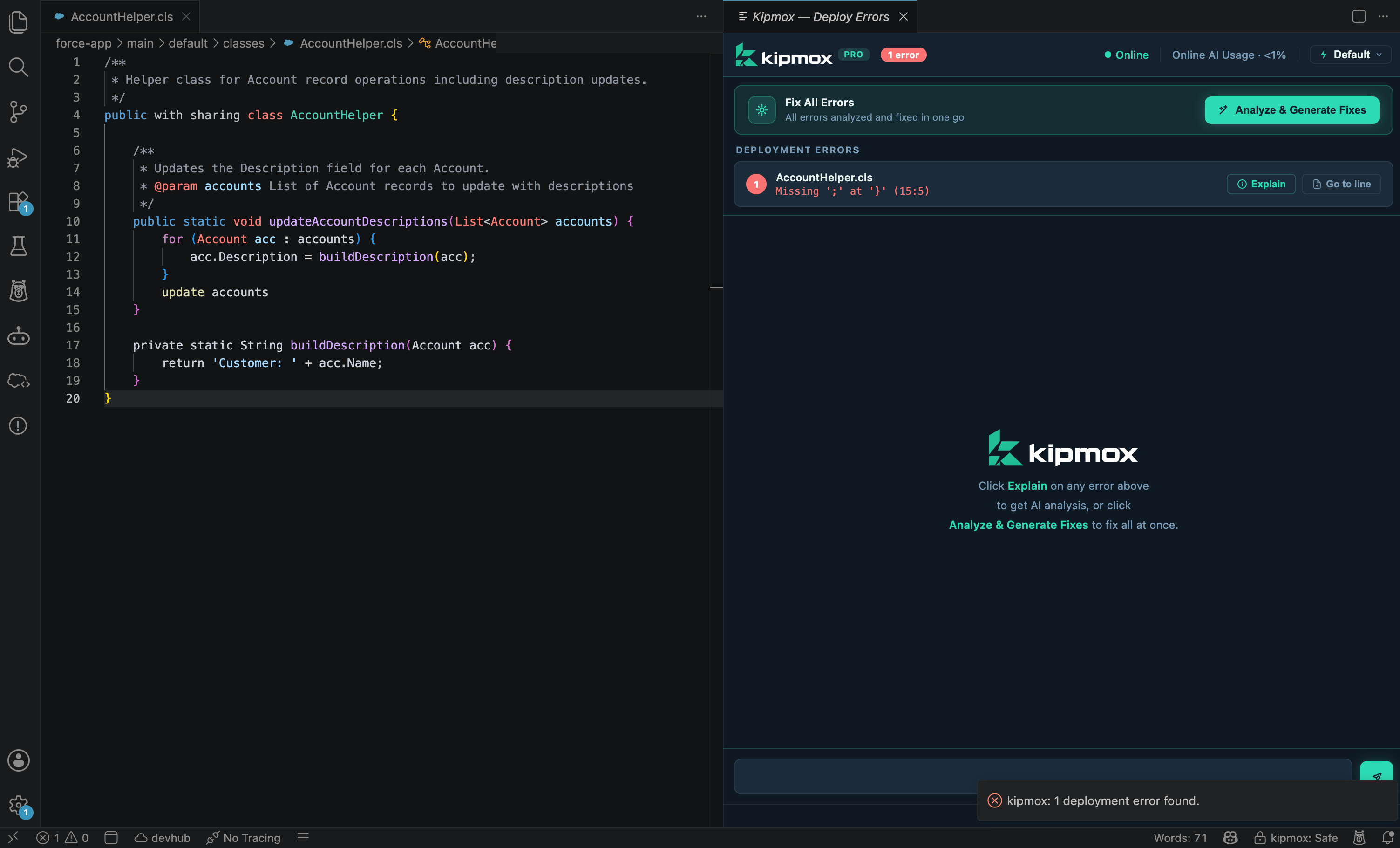
When the deploy fails, kipmox shows **"kipmox: n deployment error(s) found."** and opens the **kipmox — Deploy Errors** panel with every error:
| | |
| ----------------- | -------------------------------------------------------- |
| **File** | The Apex class, trigger, or LWC component with the error |
| **Line** | The exact line where it occurred |
| **Error message** | The raw Salesforce CLI error |
Click **Go to line** on any error to jump your cursor straight to it (no AI used). **Confidence and Risk** appear only *after* kipmox generates a fix (via Explain or Analyze & Generate Fixes) — not on the raw error list.
## On failure — the Deploy Errors panel
When the deploy fails, kipmox shows **"kipmox: n deployment error(s) found."** and opens the **kipmox — Deploy Errors** panel with every error:
| | |
| ----------------- | -------------------------------------------------------- |
| **File** | The Apex class, trigger, or LWC component with the error |
| **Line** | The exact line where it occurred |
| **Error message** | The raw Salesforce CLI error |
Click **Go to line** on any error to jump your cursor straight to it (no AI used). **Confidence and Risk** appear only *after* kipmox generates a fix (via Explain or Analyze & Generate Fixes) — not on the raw error list.
 Each failed deploy refreshes the panel with the latest errors — it updates in place if open, or opens a new tab if closed.
## Confidence & Risk
Every fix shows how sure kipmox is and what to watch for before you apply it:
| | Meaning |
| ------------------- | ----------------------------------------------------------------- |
| 🎯 **Confidence** | High, Medium, or Low — how sure kipmox is that the fix is correct |
| ✅ **No risk flags** | No caveats — safe to review and apply |
| ⚠️ **Risk: …** | A plain-English note on what to double-check first |
Each fix also includes a **What Changed** summary. See [How Fixes Are Verified](/trust/how-fixes-are-verified).
## Explain — understand any error
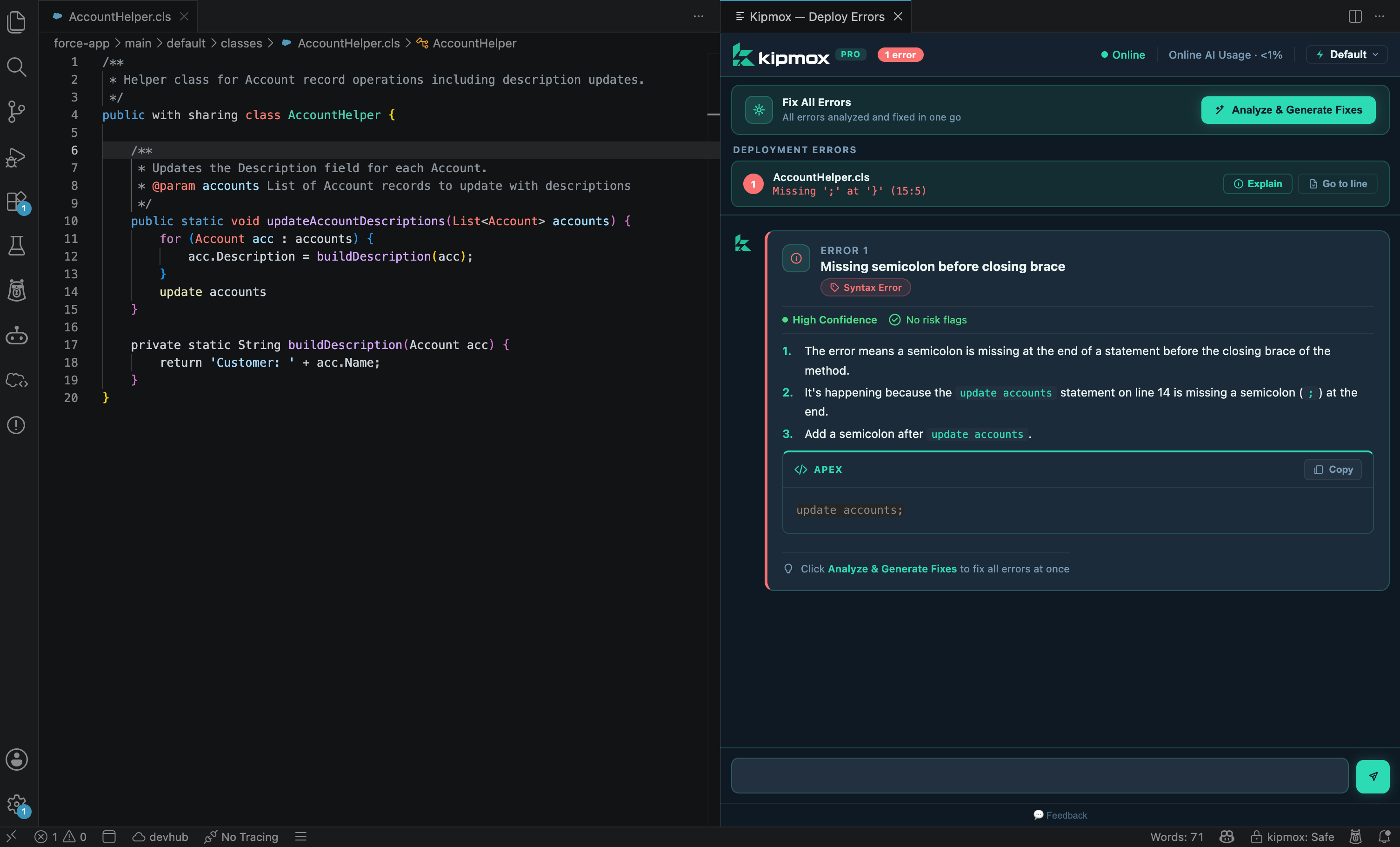
Click **Explain** on any error for a full analysis of that one error:
* What it means in plain English
* Exactly why it's happening in your specific code
* A suggested fix you can copy
Explain is on **every plan**, and it's about *understanding* an error — the Explain view has **no Apply button**.
Each failed deploy refreshes the panel with the latest errors — it updates in place if open, or opens a new tab if closed.
## Confidence & Risk
Every fix shows how sure kipmox is and what to watch for before you apply it:
| | Meaning |
| ------------------- | ----------------------------------------------------------------- |
| 🎯 **Confidence** | High, Medium, or Low — how sure kipmox is that the fix is correct |
| ✅ **No risk flags** | No caveats — safe to review and apply |
| ⚠️ **Risk: …** | A plain-English note on what to double-check first |
Each fix also includes a **What Changed** summary. See [How Fixes Are Verified](/trust/how-fixes-are-verified).
## Explain — understand any error
Click **Explain** on any error for a full analysis of that one error:
* What it means in plain English
* Exactly why it's happening in your specific code
* A suggested fix you can copy
Explain is on **every plan**, and it's about *understanding* an error — the Explain view has **no Apply button**.
 **On the Free plan, this is how you fix errors:** click **Explain** on each error and copy its suggested fix into your file. Free-plan fixes are limited to **15 every 4 hours** — see [Plans & Limits](/help/plans-and-limits).
## Analyze & Generate Fixes (Pro)
On **Pro**, click **Analyze & Generate Fixes** to generate a fix for **every** error at once. Each shows the **Fixed code**, a **What Changed** summary, and its **Confidence & Risk**.
Then click **Apply Fix**. kipmox applies the change, **saves the file automatically**, and highlights the changed lines in green:
**"kipmox: Fix applied — changed lines highlighted in green. Undo anytime with Cmd+Z."**
Your only action is to **undo** if you don't want it — click **Undo Fix** or press `Cmd+Z` / `Ctrl+Z`. The auto-save is deliberate: it lets kipmox run its **deterministic check** on the saved file (see [After applying fixes](#after-applying-fixes) below).
**On the Free plan, this is how you fix errors:** click **Explain** on each error and copy its suggested fix into your file. Free-plan fixes are limited to **15 every 4 hours** — see [Plans & Limits](/help/plans-and-limits).
## Analyze & Generate Fixes (Pro)
On **Pro**, click **Analyze & Generate Fixes** to generate a fix for **every** error at once. Each shows the **Fixed code**, a **What Changed** summary, and its **Confidence & Risk**.
Then click **Apply Fix**. kipmox applies the change, **saves the file automatically**, and highlights the changed lines in green:
**"kipmox: Fix applied — changed lines highlighted in green. Undo anytime with Cmd+Z."**
Your only action is to **undo** if you don't want it — click **Undo Fix** or press `Cmd+Z` / `Ctrl+Z`. The auto-save is deliberate: it lets kipmox run its **deterministic check** on the saved file (see [After applying fixes](#after-applying-fixes) below).
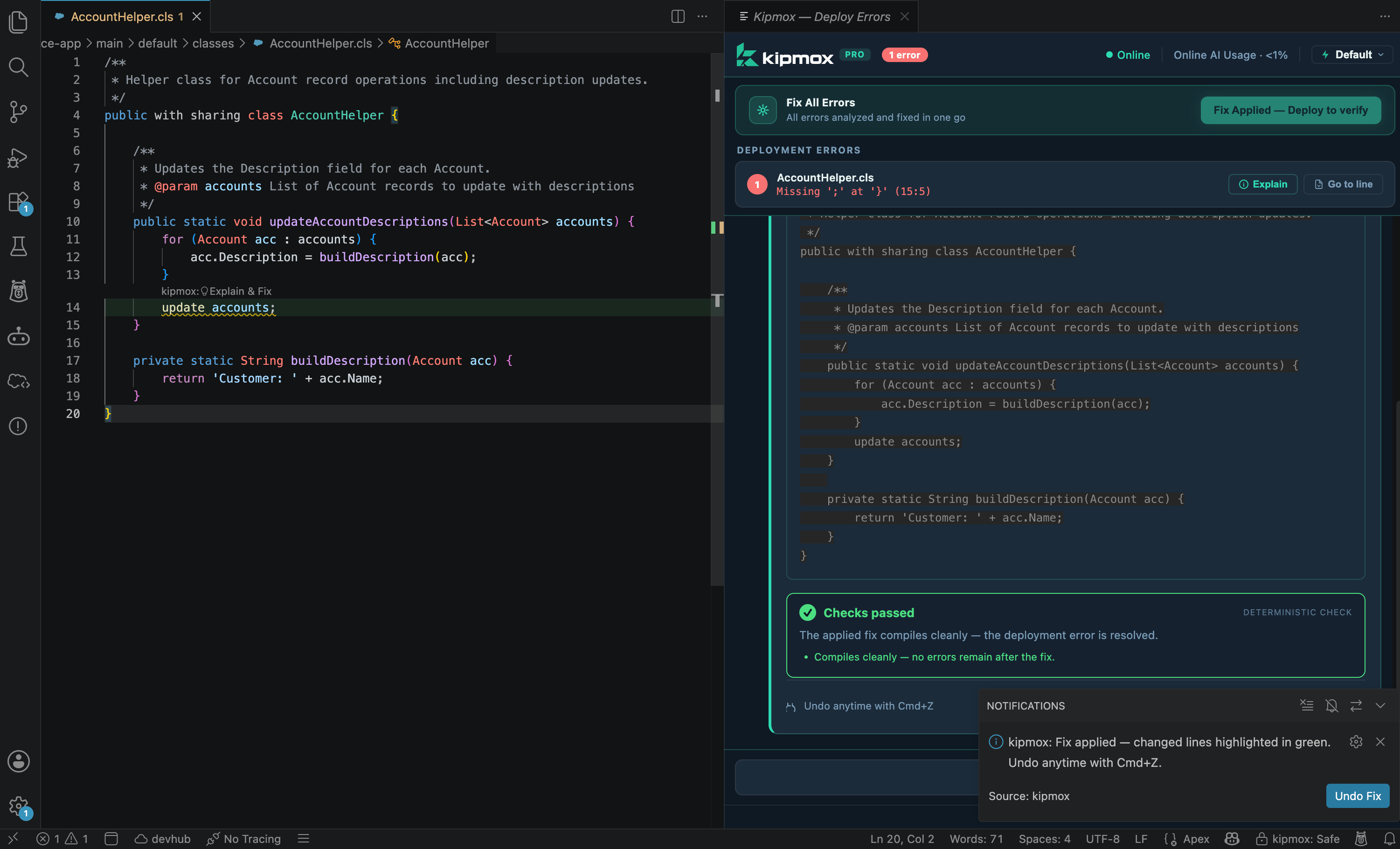 **Apply Fix appears only after Analyze & Generate Fixes** — the Explain view never has one. With Safe Mode (the default) you click **Apply Fix**; with [Auto Fix Mode](/configuration/safe-mode) (Pro) generated fixes apply automatically.
## After applying fixes
When you click **Apply Fix**, kipmox verifies the change with its **deterministic check**. For deployment fixes this runs **after** the fix is applied — the fix goes in, then kipmox re-checks it and shows a verdict (**Checks passed / Review recommended / Validation failed**). That's the opposite order from analysis warnings, which are verified *before* you apply. See [How Fixes Are Verified](/trust/how-fixes-are-verified).
Once your fixes are applied, run **kipmox: Deploy to Org** again. If it succeeds, you're done; if new errors appear, kipmox reopens the panel and you repeat the cycle.
Some errors are **layered** — fixing one can reveal another underneath. Repeat the deploy-fix cycle until it succeeds cleanly.
## How kipmox understands your code
kipmox doesn't just read the file you deploy — it builds context from your wider codebase to give more accurate fixes.
### LWC bundles
When you deploy any file in an LWC component folder, kipmox deploys the **entire bundle** and reads every file in it — the `.js` controller, `.html` template, `.css`, and `.js-meta.xml`. So when fixing a JavaScript error, kipmox knows what the HTML template expects, and vice-versa.
Right-click **any** file in the LWC folder to deploy the whole bundle — you don't need to pick a specific file.
### Apex dependencies
When you deploy an Apex class, kipmox reads the classes it depends on. If your class calls another class, kipmox has that context when generating fixes — so suggestions are based on your actual codebase, not just the file being deployed.
## Ask kipmox
The chat input at the bottom of the Deploy Errors panel lets you ask about your errors — request an alternative fix, or get more Salesforce context. On the Free plan, usage counts toward your 4-hour limits.
## Supported file types
| Extension | Type |
| ---------- | --------------------------------------- |
| `.cls` | Apex class (including batch classes) |
| `.trigger` | Apex trigger |
| `.js` | LWC JavaScript (deploys full bundle) |
| `.html` | LWC HTML template (deploys full bundle) |
XML metadata files (`.xml`) can't be deployed with kipmox in this release — only the code files above.
## Common issues
The active file must be a supported type (`.cls`, `.trigger`, `.js`, `.html`). If the option still doesn't appear, run **Developer: Reload Window** from the Command Palette.
kipmox only monitors deploys started with **kipmox: Deploy to Org**. If you used the Salesforce CLI or SFDX commands directly, kipmox won't detect the errors — deploy with kipmox: Deploy to Org.
You may be deploying to the wrong org. kipmox always deploys to your **CLI default org** — check it in the VS Code status bar.
Bulk **Analyze & Generate Fixes** is a Pro feature. On the Free plan, use **Explain** on each error and copy the fix into your file.
Some errors are layered — fixing one can reveal another. Run **kipmox: Deploy to Org** again and repeat until it's clean.
LWC components deploy as a full bundle — all files in the folder go together. If another file in the bundle has an error, the deploy fails even if you only changed one. Check the panel for the specific file and line.
The checks behind every fix
Control when fixes are applied
**Apply Fix appears only after Analyze & Generate Fixes** — the Explain view never has one. With Safe Mode (the default) you click **Apply Fix**; with [Auto Fix Mode](/configuration/safe-mode) (Pro) generated fixes apply automatically.
## After applying fixes
When you click **Apply Fix**, kipmox verifies the change with its **deterministic check**. For deployment fixes this runs **after** the fix is applied — the fix goes in, then kipmox re-checks it and shows a verdict (**Checks passed / Review recommended / Validation failed**). That's the opposite order from analysis warnings, which are verified *before* you apply. See [How Fixes Are Verified](/trust/how-fixes-are-verified).
Once your fixes are applied, run **kipmox: Deploy to Org** again. If it succeeds, you're done; if new errors appear, kipmox reopens the panel and you repeat the cycle.
Some errors are **layered** — fixing one can reveal another underneath. Repeat the deploy-fix cycle until it succeeds cleanly.
## How kipmox understands your code
kipmox doesn't just read the file you deploy — it builds context from your wider codebase to give more accurate fixes.
### LWC bundles
When you deploy any file in an LWC component folder, kipmox deploys the **entire bundle** and reads every file in it — the `.js` controller, `.html` template, `.css`, and `.js-meta.xml`. So when fixing a JavaScript error, kipmox knows what the HTML template expects, and vice-versa.
Right-click **any** file in the LWC folder to deploy the whole bundle — you don't need to pick a specific file.
### Apex dependencies
When you deploy an Apex class, kipmox reads the classes it depends on. If your class calls another class, kipmox has that context when generating fixes — so suggestions are based on your actual codebase, not just the file being deployed.
## Ask kipmox
The chat input at the bottom of the Deploy Errors panel lets you ask about your errors — request an alternative fix, or get more Salesforce context. On the Free plan, usage counts toward your 4-hour limits.
## Supported file types
| Extension | Type |
| ---------- | --------------------------------------- |
| `.cls` | Apex class (including batch classes) |
| `.trigger` | Apex trigger |
| `.js` | LWC JavaScript (deploys full bundle) |
| `.html` | LWC HTML template (deploys full bundle) |
XML metadata files (`.xml`) can't be deployed with kipmox in this release — only the code files above.
## Common issues
The active file must be a supported type (`.cls`, `.trigger`, `.js`, `.html`). If the option still doesn't appear, run **Developer: Reload Window** from the Command Palette.
kipmox only monitors deploys started with **kipmox: Deploy to Org**. If you used the Salesforce CLI or SFDX commands directly, kipmox won't detect the errors — deploy with kipmox: Deploy to Org.
You may be deploying to the wrong org. kipmox always deploys to your **CLI default org** — check it in the VS Code status bar.
Bulk **Analyze & Generate Fixes** is a Pro feature. On the Free plan, use **Explain** on each error and copy the fix into your file.
Some errors are layered — fixing one can reveal another. Run **kipmox: Deploy to Org** again and repeat until it's clean.
LWC components deploy as a full bundle — all files in the folder go together. If another file in the bundle has an error, the deploy fails even if you only changed one. Check the panel for the specific file and line.
The checks behind every fix
Control when fixes are applied