> ## Documentation Index
> Fetch the complete documentation index at: https://docs.kipmox.com/llms.txt
> Use this file to discover all available pages before exploring further.
# Generate Documentation
> Turn any Apex class, trigger, or LWC into a clear technical document — one command.
Inherited a tangled org? Onboarding a teammate? kipmox reads any Salesforce file and writes a clear, accurate document — purpose, key methods, and dependencies — without you writing a word.
## How it works
kipmox parses the **structure** of your code locally, then the AI writes the prose. Because the facts come straight from your source, the document stays accurate — it describes what the code actually does, not a guess.
Open any Apex class, trigger, or Lightning Web Component.
Run **kipmox: Explain this code** — from the Command Palette (`Cmd+Shift+P` / `Ctrl+Shift+P`), or by right-clicking the file in the editor or the Explorer.
A document opens beside your editor — overview, key methods, dependencies, and the file's analysis findings.
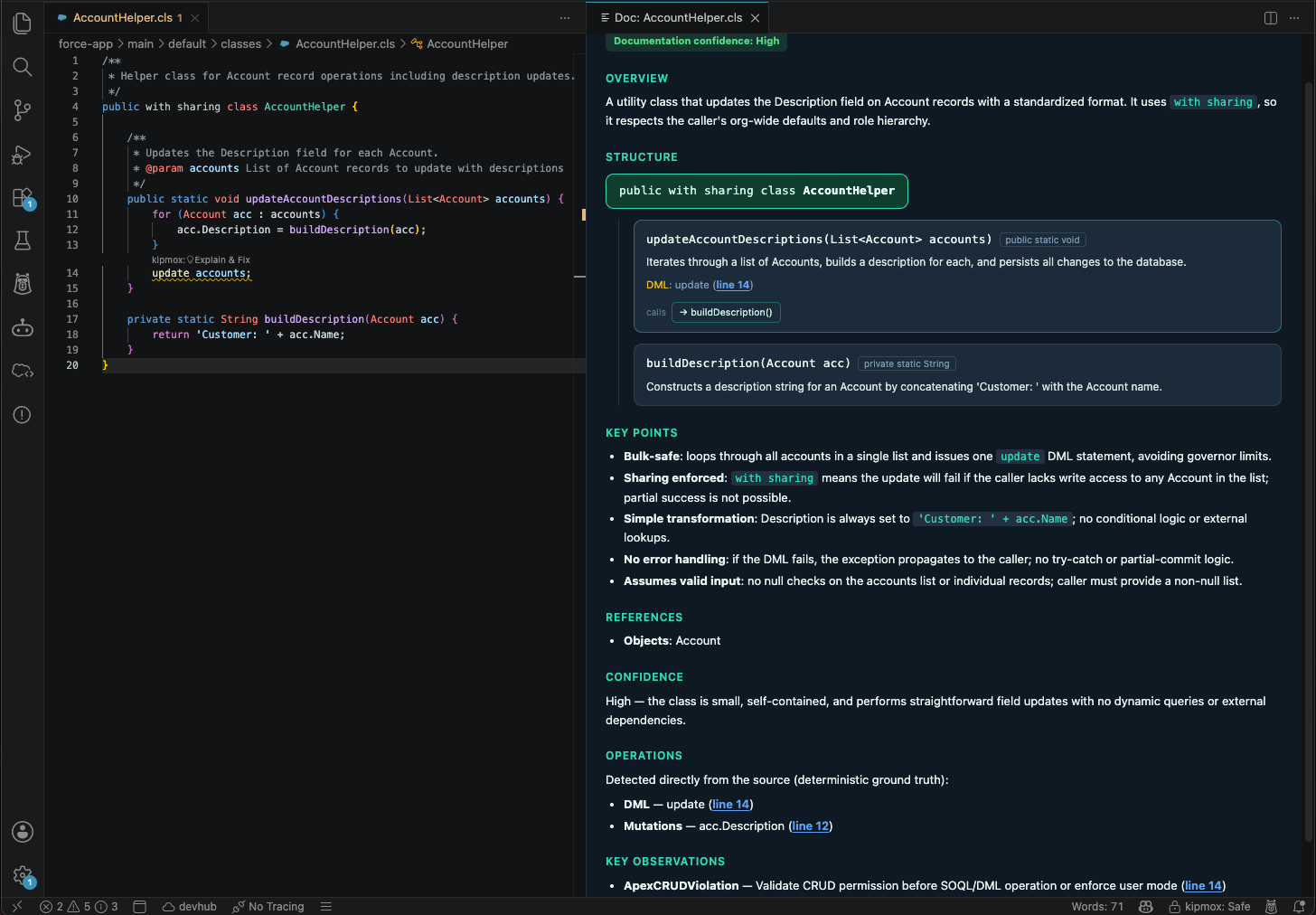 ## What's in a document
| Section | What it covers |
| --------------------- | ----------------------------------------------------------------------------------------------------------------------- |
| **Overview** | What the class, trigger, or component does, in plain English |
| **Key methods** | Each method and what it's responsible for |
| **References** | The objects, fields, and other classes it depends on |
| **Analysis findings** | The static-analysis results for the file — the same issues kipmox flags inline (SOQL-in-loops, security gaps, and more) |
## What it works on
* **Apex** — classes and triggers
* **Lightning Web Components** — the full bundle (JavaScript, HTML, metadata)
On the **Free** plan you can generate **2 documents every 4 hours**. **Pro** is never blocked. See [Plans & Limits](/help/plans-and-limits). Documentation works **online or offline**, like every kipmox AI action — see [Offline Mode](/configuration/offline-mode).
## Common questions
Open the file, then run **kipmox: Explain this code** from the Command Palette (`Cmd+Shift+P` / `Ctrl+Shift+P`) — or right-click the file (in the editor or the Explorer) and choose **kipmox: Explain this code**.
Apex **classes** and **triggers**, and Lightning Web **Components** (the full bundle). Open one of these before running the command.
kipmox reads your code's structure straight from the source, then the AI writes the prose around those facts — so the overview, methods, and references reflect what the code actually does, not a guess. The document also includes the file's static-analysis findings.
Yes, on **Pro** — with [Offline Mode](/configuration/offline-mode) the document is generated by a local model and your code never leaves your machine.
On **Free**, 2 documents every 4 hours. **Pro** is never blocked. See [Plans & Limits](/help/plans-and-limits).
Make sure a supported file (`.cls`, `.trigger`, `.js`, `.html`) is the **active** editor tab. Documentation also counts toward your plan, so you may be prompted to [sign in](/getting-started/installation#sign-in) after your first couple of requests.
Every AI change is checked before you rely on it
Run kipmox fully local — your code stays on your machine
## What's in a document
| Section | What it covers |
| --------------------- | ----------------------------------------------------------------------------------------------------------------------- |
| **Overview** | What the class, trigger, or component does, in plain English |
| **Key methods** | Each method and what it's responsible for |
| **References** | The objects, fields, and other classes it depends on |
| **Analysis findings** | The static-analysis results for the file — the same issues kipmox flags inline (SOQL-in-loops, security gaps, and more) |
## What it works on
* **Apex** — classes and triggers
* **Lightning Web Components** — the full bundle (JavaScript, HTML, metadata)
On the **Free** plan you can generate **2 documents every 4 hours**. **Pro** is never blocked. See [Plans & Limits](/help/plans-and-limits). Documentation works **online or offline**, like every kipmox AI action — see [Offline Mode](/configuration/offline-mode).
## Common questions
Open the file, then run **kipmox: Explain this code** from the Command Palette (`Cmd+Shift+P` / `Ctrl+Shift+P`) — or right-click the file (in the editor or the Explorer) and choose **kipmox: Explain this code**.
Apex **classes** and **triggers**, and Lightning Web **Components** (the full bundle). Open one of these before running the command.
kipmox reads your code's structure straight from the source, then the AI writes the prose around those facts — so the overview, methods, and references reflect what the code actually does, not a guess. The document also includes the file's static-analysis findings.
Yes, on **Pro** — with [Offline Mode](/configuration/offline-mode) the document is generated by a local model and your code never leaves your machine.
On **Free**, 2 documents every 4 hours. **Pro** is never blocked. See [Plans & Limits](/help/plans-and-limits).
Make sure a supported file (`.cls`, `.trigger`, `.js`, `.html`) is the **active** editor tab. Documentation also counts toward your plan, so you may be prompted to [sign in](/getting-started/installation#sign-in) after your first couple of requests.
Every AI change is checked before you rely on it
Run kipmox fully local — your code stays on your machine