

Sign in from VS Code
1
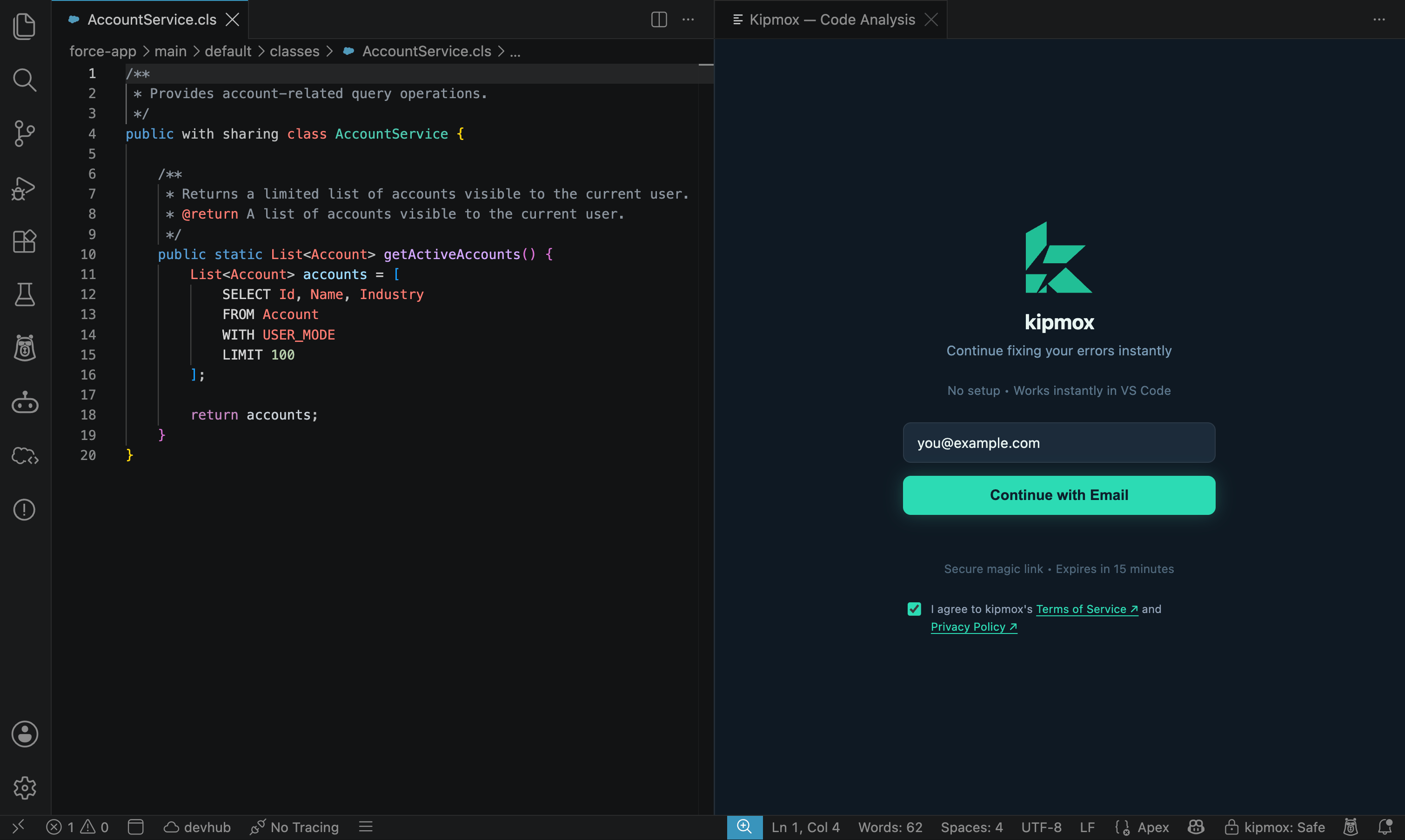
Enter your email
In the kipmox panel, enter your email and request a link.
2
Open the email
kipmox sends you a sign-in link. Open the email and click it.
3
You're in
VS Code signs you in automatically. Re-run whatever action you were doing to continue.
The magic link expires after 15 minutes. If it expires, request a new one from VS Code.
Sign in from the website
You can also sign in at kipmox.com with your email. From your account page you can open VS Code to connect your session, view your plan and usage, and manage billing. Your plan syncs across the website and VS Code — run kipmox: Refresh Account if you need VS Code to pick up a change right away.Trying kipmox without an account
Your first 2 requests are free with no account. From the 3rd request, kipmox prompts you to sign in — this is still the Free plan (15 fixes and 2 documents every 4 hours); an account just lets you keep going.Sign out
Run kipmox: Sign Out from the Command Palette (Cmd+Shift+P / Ctrl+Shift+P) to sign out on that machine.
Refresh your account
If you’ve just upgraded or your plan changed, run kipmox: Refresh Account to sync the latest status into VS Code — no reinstall needed.Plans & Limits
What’s included in Free, Pro, and Enterprise
Manage Subscription
Upgrade, change billing, or cancel