

Cmd+Shift+P / Ctrl+Shift+P). Type kipmox to filter the full list.
Three commands are also on the right-click menu —
kipmox: Deploy to Org, kipmox: Explain this code, and kipmox: Re-analyse File — in both the editor and the Explorer. Every command is always available from the Command Palette, and a couple also have a status bar shortcut — each command’s Available from row below says where.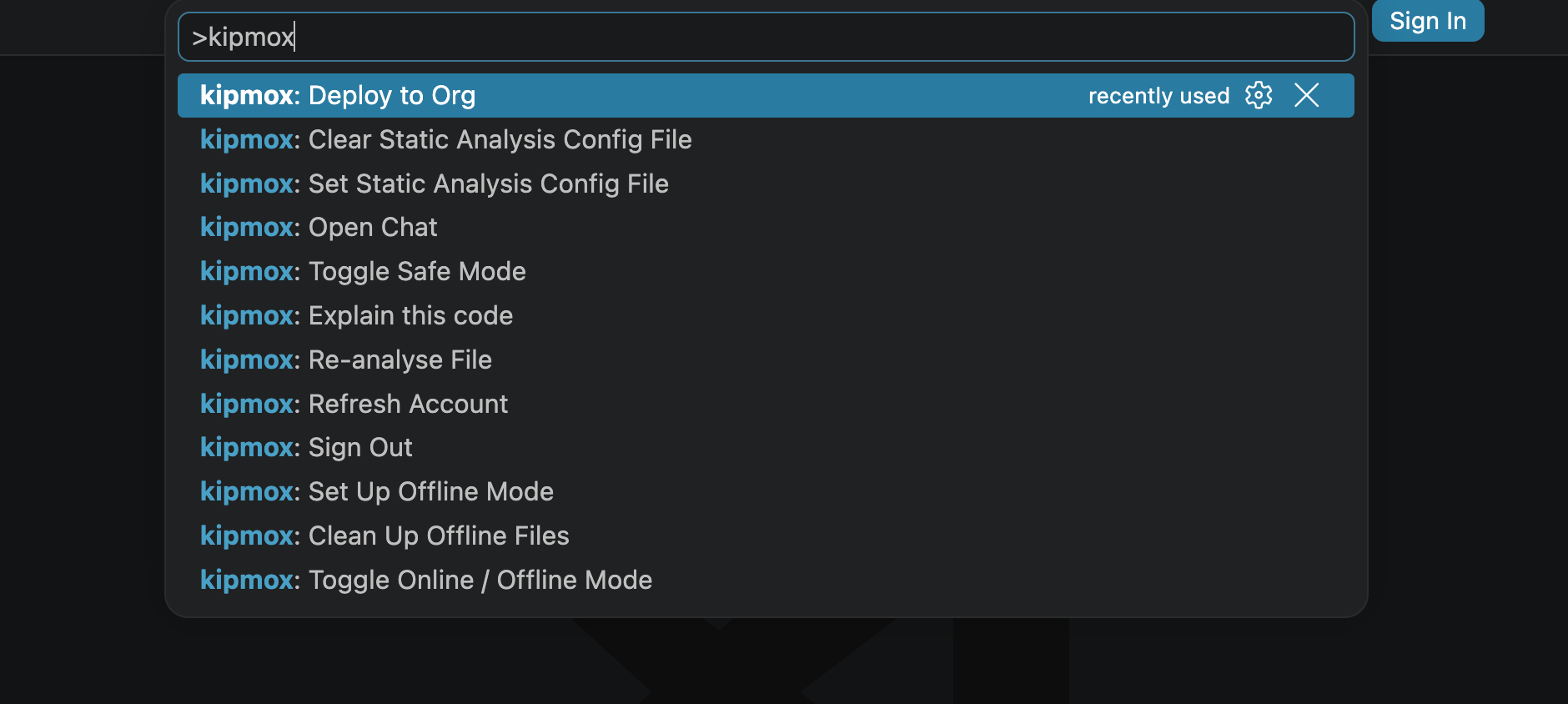
Deploy
kipmox: Deploy to Org
See Deploy to Org for the full workflow.
Code analysis & documentation
kipmox: Explain this code
See Generate Documentation.
kipmox: Re-analyse File
kipmox shows a notification when the command completes:
Analysis normally runs when you save a file — not when you open it. Use this command to re-analyse on demand. See Code Analysis.
kipmox: Open Chat
If you click kipmox: 💡 Explain & Fix on a flagged line while the chat is open, the panel resets to show that specific fix. Use Open Chat to start a fresh conversation without triggering analysis.
kipmox: Set Static Analysis Config File
See Code Analysis Rules.
kipmox: Clear Static Analysis Config File
Modes
kipmox: Toggle Safe Mode
- Switching to Safe Mode: “Safe Mode enabled — fixes require manual approval”
- Switching to Auto Fix Mode: “Auto Fix Mode enabled — fixes apply automatically”
kipmox: Toggle Online / Offline Mode
Switching to Offline Mode has extra checks:
- Free plan — shows “kipmox: Offline Mode is a Pro feature.” with an Upgrade to Pro button
- Pro, offline not set up — shows “kipmox: Offline Mode requires setup first. Set it up now?” with a Set Up Offline Mode button
- Pro, offline set up — switches immediately
Offline Mode
kipmox: Set Up Offline Mode
Offline Mode requires a Pro plan. Running this on Free shows an upgrade prompt.
kipmox: Clean Up Offline Files
Account
kipmox: Refresh Account
kipmox: Sign Out
Deploy to Org
The full deploy-and-fix workflow
Code Analysis Rules
Built-in rules and custom YAML config